Start with a timer you can live with
A timer can make the next stretch of work visible. It cannot decide what matters, and a fixed interval does not suit every task. Treat a timed session as a small experiment: pick one task, choose a length you can accept, and decide what you will do when the timer ends.
The familiar Pomodoro pattern uses a work interval followed by a short break. A study of 94 university students compared self-chosen breaks, Pomodoro breaks, and Flowtime breaks during a two-hour study session. (PubMed study) In the study's Pomodoro condition, students took five-minute breaks after every 25 minutes of studying. (PubMed study) The researchers reported no overall differences in productivity, task completion, or flow between the groups. (PubMed results) This was one study with university students, not a test of ADHD treatment or proof that one schedule works for everyone. The useful takeaway is modest: try a structure, notice whether it fits your task, and adjust it.
Choose a first interval
Start by naming a task small enough to see. “Work on report” is broad. “Open the file and outline the first section” gives the timer a clear job. If the task still feels hard to begin, set five minutes and use them only to start. If you already know the task well, choose a longer block. You do not need to earn a break by finishing a whole project.
Choose a break that lets you return. Stand, stretch, refill water, or look away from the screen. If a break tends to turn into a long detour, use a second cue for the return. If the timer interrupts you just as you get going, shorten the task or try a softer ending. The point is to make the next choice easier, not to follow a rule perfectly.
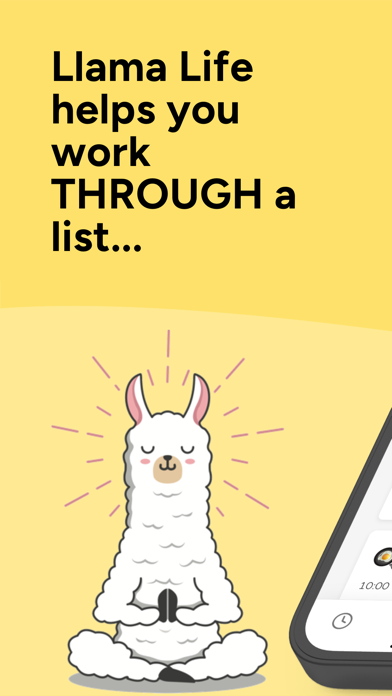
Three apps show different ways to make time easier to notice. Llama Life lets users set task timers as short as one minute. (Llama Life) Its short minimum can help you begin with a small block; the timer still needs a specific action to count down.
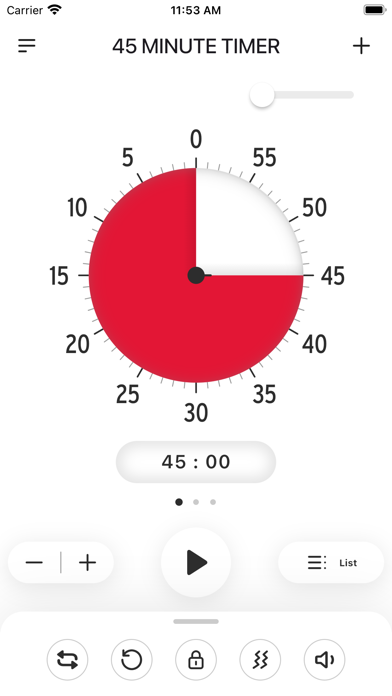
Time Timer describes its app as a customizable visual timer. (Time Timer) Choose this style if seeing a changing visual cue is easier to interpret than checking a number.
TickTick describes Pomodoro as a way to break complex tasks into smaller sessions. (TickTick) It may suit someone who prefers a timer alongside task lists. Its official help page describes a 25-minute focus period followed by a five-minute break; check the settings before relying on that pattern.

Make the session flexible
Try this simple loop:
- Write one visible action, such as “read two pages” or “reply to one message.”
- Pick a timer length based on the action and your current energy. Use a short block if you are unsure.
- Start the timer and keep only the chosen task in front of you. Put unrelated thoughts on a capture list so you can return to them later.
- When the cue sounds, mark what changed. Decide whether to continue, pause, or make the next action smaller.
- After a few sessions, keep the interval that helped you begin and change the one that kept interrupting you.
A timer measures a span; it does not measure the value of your work. Some tasks need uninterrupted thinking, while others have natural stopping points. If a meeting, meal, commute, or care task is next, use a separate calendar or reminder for that transition. Do not rely on a focus timer alone for an appointment or deadline.
Adjust without judging yourself
If a 25-minute block feels out of reach, try 5 or 10 minutes. If you are already engaged, try a longer block and set a reminder for a later check-in instead of forcing a break at an awkward moment. You can also use different intervals for different tasks: a short block to start, a longer one for routine work, and an open-ended stretch when stopping would break your train of thought.
Notice practical signals, not a productivity score. Did the cue help you begin? Did it make you stop at a useful point? Did the break make returning clearer or harder? Change one setting at a time, so you can tell what made a difference. If a timer adds pressure or noise, turn it off and use a written next step or calendar cue instead.
Quick recap
- Write the next action before starting a timer.
- Choose a short or longer interval based on the task and your comfort.
- Decide how you will return after a break.
- Change or remove the timer if it adds pressure or noise.
Try one session today, then keep only the setting that made your next step clearer.