Put time where you can see it
When a day feels like a string of surprises, the problem may be the gap between a plan and the moment you need it. A calendar can hold the appointment. A reminder can call your attention back. A timer can show how long one task is taking. Start with the point where your day tends to drift, then add one cue there.
Keep the plan small enough that you will review it. Start with one cue where your day tends to drift, then add another only when the first one helps.
Build a light daily routine
Try these steps for one ordinary day:
- Choose one home for appointments. Put fixed events, deadlines, and travel time in the same calendar. Avoid copying them into several systems unless you have a clear reason.
- Add a cue before transitions. For a meeting or leaving home, set one reminder early enough to act. If you need time to get ready, add a second cue for the first preparation step.
- Name the next action. Turn “work on taxes” into “open the folder and find the latest form.” A specific verb makes it easier to know what to do when you return.
- Track only what you need. If you are unsure where time goes, time a few selected tasks for a short period. Stop tracking when the information no longer changes your plan.
- Review once. At lunch or the end of the day, move unfinished items to a realistic time or drop them. Do not treat a full list as a promise that every item must fit.
Choose a tool based on the cue you need. Clockify lets a user enter an activity and start a timer, resume a past timer with one click, or enter and edit hours manually after forgetting to track. (Clockify) That can help you collect rough time records without trying to reconstruct every minute. Use it for a few tasks you want to understand, not as a scorecard for your whole day.

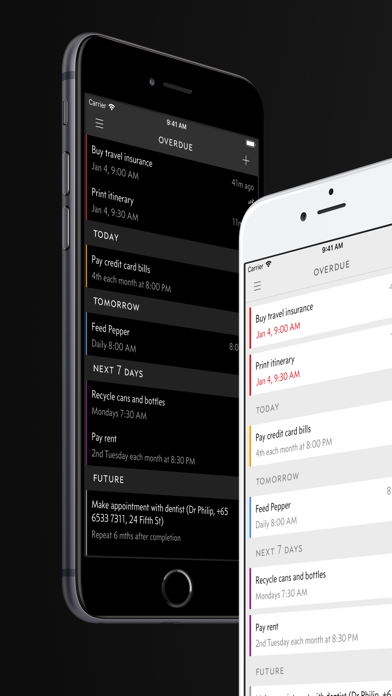
Due can repeatedly notify you about an overdue reminder until you mark it complete, reschedule it, or turn off auto snooze. (Due help) This may fit a reminder that must keep returning, such as taking something before leaving. It can also become too persistent, so use auto snooze only for items that need repeated attention and adjust the interval. Due's help page notes that iOS supports only minute- or hour-based auto snooze intervals; review the current settings on your device.
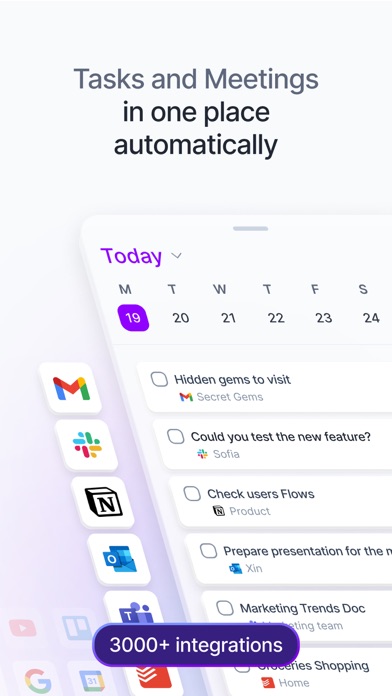
Akiflow lets users plan a task for a date, time, or time frame. (Akiflow help) Its calendar view may help when you want to see a task beside fixed events. Akiflow’s own help says automatic time blocking across multiple calendars is not supported, so check its current setup and plan to place blocks yourself.
Goally's official page presents a Kids Tablet for ages 2–8 with visual schedules and photo-based steps. (Goally) This is an option for a caregiver planning a young child's routine, not an adult calendar or time tracker. Check age fit, device setup, and whether the child will use the routine before considering it.

Make reminders earn their place
A cue is useful when it arrives where you can notice it and tells you what action comes next. “Appointment soon” is less direct than “put on shoes and leave.” Use the second phrasing only if it matches your actual routine. If a task depends on another person or a location, include that detail in the reminder so you do not need to remember the context later.
Try a one-week test with two cues: one for the transition you miss most often and one for a daily review. If you ignore the first alert, change its sound or timing before adding more alerts. If you dismiss reminders automatically, move them to a device or screen you check at the right moment. A visible paper note may work better than another notification.
Time estimates are guesses. Leave gaps between blocks for travel, setup, meals, and tasks that run long. If a task expands, move the next flexible item instead of rebuilding the whole day. Keep a short list of what must happen today and a separate place for the rest. This makes a missed item easier to reschedule without losing the plan.
Quick recap
- Keep fixed events in one calendar.
- Add one reminder before a transition that often gets missed.
- Name the next physical action.
- Leave room for travel, setup, and tasks that run long.
For tomorrow, choose one transition and add a single cue. Review it after it appears, then keep, change, or remove it.