Starting a task can get stuck for different reasons. The next step may be unclear, easy to forget, too long to face, or one click away from a favorite distraction. A tool can add a prompt or a boundary, but it cannot decide what matters for you. The useful question is smaller: what keeps this task from beginning today?
The four options below solve different parts of that problem. They are not ranked. Pick the one that fits the snag you notice, then try it on one task. A short trial gives you a clearer answer than adding four new systems at once.
When you do not know how to begin: Amazing Marvin
Amazing Marvin's Procrastination Wizard asks questions and offers tips to help you figure out what is getting in the way of a task. The wizard can ask you to write something down or start a short timer. That may suit a task that feels vague or loaded with decisions. You can turn a large label such as “finish report” into a prompt to name the first open file, find one source, or write a rough first line.
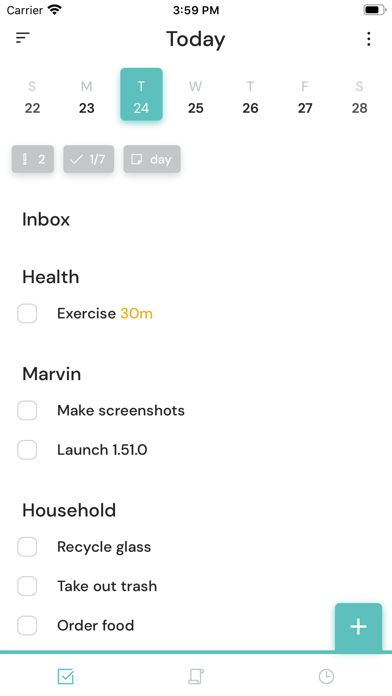
Try opening the feature for one task you have already postponed. Keep the task visible while you answer. When the next action is clear, stop exploring options and do that action for a few minutes. If the wizard does not make the next step clearer, write your own next action and move on. A guided prompt is one way to get unstuck, not a requirement to keep thinking about the task.
When you forget to return to it: Any.do
Any.do offers personal task reminders, including one-time alerts and recurring schedules. A reminder can help when a task has a clear time or cue but slips out of mind. For example, set a reminder to send a form after a meeting, or to check a bill on a day you have time to handle it.
Use a reminder only when you can act on it or choose a new time. Too many alerts can become another stream to dismiss. If you are not sure when the task will fit, start with one reminder and review it when it arrives. Do not set a recurring alert until you know the task truly repeats. A prompt that returns every day without a plan may add noise instead of helping.
When a short work window feels possible: TickTick
TickTick lists a Pomodoro tool among its productivity features. That gives you a timer inside a broader task app, which may suit you if you already want to keep the task and the work interval together. Choose one specific next action, then use a short interval that feels manageable.
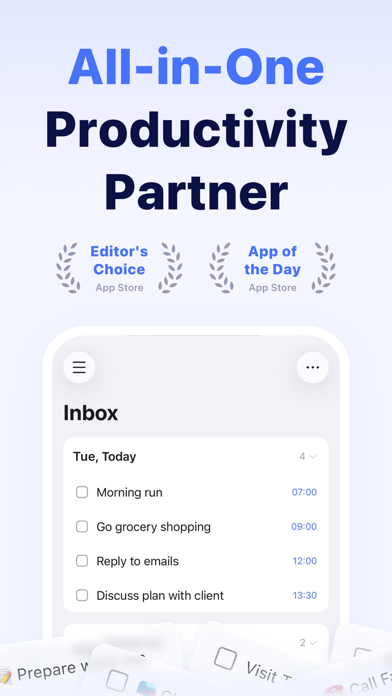
A timer can also add pressure or another setup step. You do not need to follow a standard interval length. If the countdown pulls your attention away, try a quiet timer or work without one. The goal is to start one small action, not to prove how long you can concentrate.
When a website pulls you away: BlockSite
BlockSite lets you schedule website blocks for chosen days and times, then restores access when the scheduled window ends. A schedule may help if you already know which sites tend to pull you away during a repeatable part of the day. Write down the site and a realistic block window before turning anything on.

Keep the first rule narrow. A short block during one task may be easier to review than a full-day rule. Make sure you can still reach what you need for work, safety, or communication. If the schedule blocks a site you need or feels too strict, change it. A blocker is an adjustable boundary, not a test of willpower.
Choose by the obstacle
If the task is fuzzy, try a guided prompt. If you forget a known next step, try a single reminder. If a small work period feels possible, try an interval timer. If a specific site repeatedly interrupts you, test a limited schedule. Use one tool at a time so you can tell what it changes.
For today, choose a task that takes less than an hour. Write the first physical action, such as “open the invoice” or “put the laundry in the washer.” Match one tool to the reason you have not started. After the first attempt, ask two questions: did I begin, and did the tool make the next step easier to see? If not, adjust the task or remove the tool. You are looking for a useful fit, not a perfect setup.
These apps also have tradeoffs. A wizard can keep you in setup mode. Reminders can pile up. A timer can make work feel too measured. A block can hide a site you need. Start with a small setting you can change, and keep the plan simple enough to use on an ordinary day.
Quick guide
- If the next step is unclear, try a guided prompt.
- If you forget a known task, try one reminder.
- If a short work period feels manageable, try an interval timer.
- If one site repeatedly pulls you away, test a limited block.
Choose one task and one tool today. Keep the setting only if it makes the next step easier to see.