
You open your saved reading list and spend the whole break choosing what to read. If that is the difficult part of reading with ADHD, try a smaller decision: choose one article before the break starts. Give it a clear stopping point and leave a note if you stop halfway.
This is a workflow to test, not a promise to finish your backlog. You do not need to read everything you once saved. Keep an article only when you can name a reason to return to it.
Choose a question before you choose an article
Write the question you want the reading to answer. For example: “What do I need to check before I repot this plant?” Pick one saved piece that fits. Put other choices aside for this session.
If the article is no longer useful, remove it from today's choices. Avoid sorting the whole library as a condition for starting. For a separate routine to save thoughts that interrupt your reading, use the guide to capturing quick notes.
Use a reader for a short reading queue
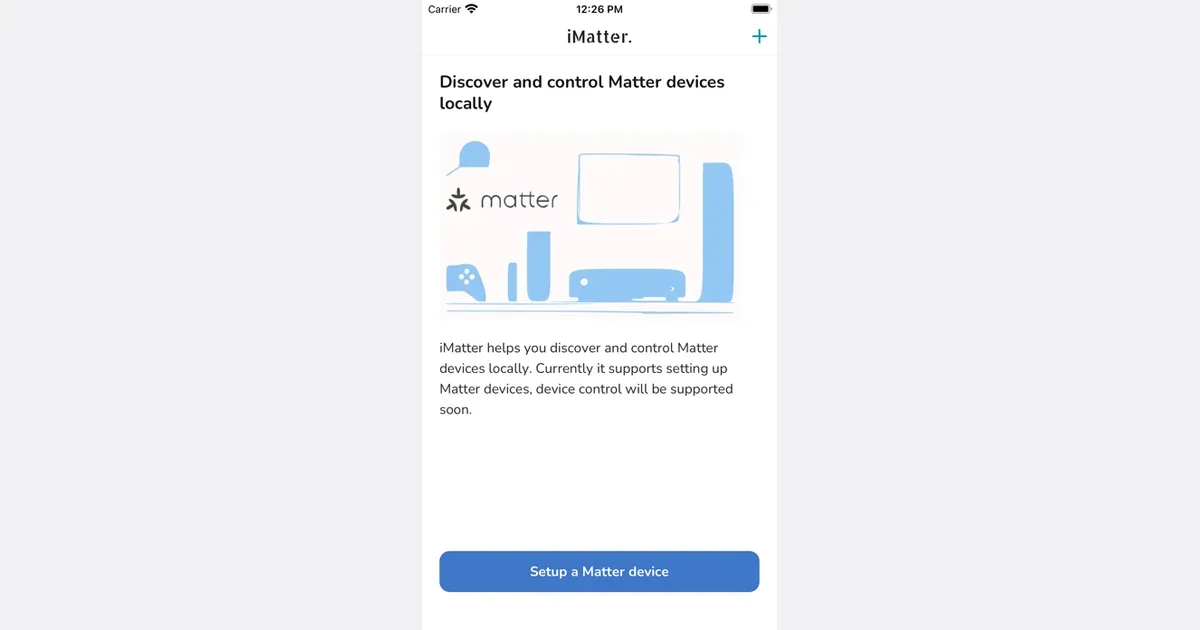
Matter can save articles, threads, and PDFs. Its official page describes those save options. Choose it for this exercise if you want to keep saved reading together, then select just one piece to open next.

Before you read, choose a stopping point such as the next heading. On paper or in a note you already use, write the article title and the question you brought to it. If you stop, add the last heading you reached and the next thing you want to check. This note is a manual step in the routine; it does not depend on an automatic reading-position feature.
Get monthly app discoveries and focus tips
Keep reading beside a project note
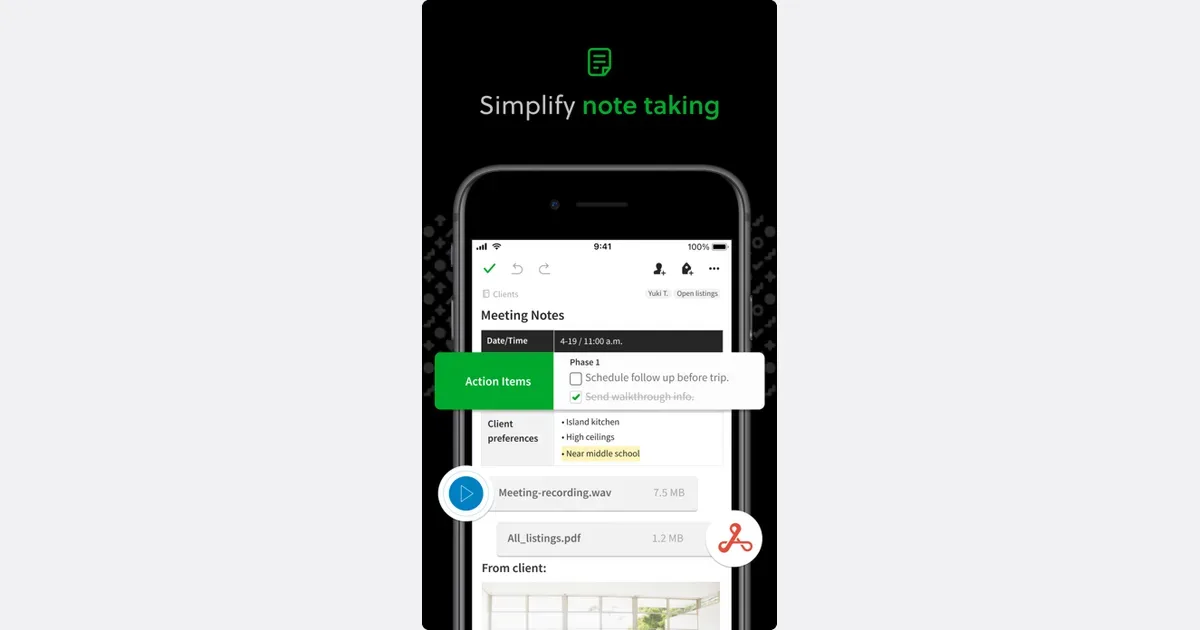
Evernote Web Clipper saves articles, web pages, and screen captures directly to the app. The official Web Clipper page explains that capture function. Consider this route when the saved page belongs with a project you already keep notes about.

For example, keep your plant-care article with the note where you record the pot size. Write “Resume at drainage section; check whether this pot has holes.” Use that precise cue when you return. Choose this option if you already use notes for the project; setting up a new library may take more effort than reading the one page.
Stop without creating a new obligation
After your chosen section, answer your question in one sentence. If you still need an answer, name what remains unclear. You can then choose to continue, ask someone, or read a different source later.
A saved page can change, and a reading app does not establish whether its advice is accurate. Check the author and original source before acting on a claim. This workflow also leaves long books and required course reading unresolved; plan those against the real assignment rather than treating a short queue as a complete study plan.
Try one reading session
- Pick one question and one article.
- Choose a heading where you may stop.
- Leave a title, location, and next question if you pause.
- Remove saved items you no longer want to read.
Before your next break, choose the article and write its question. Read one section before deciding whether to continue.