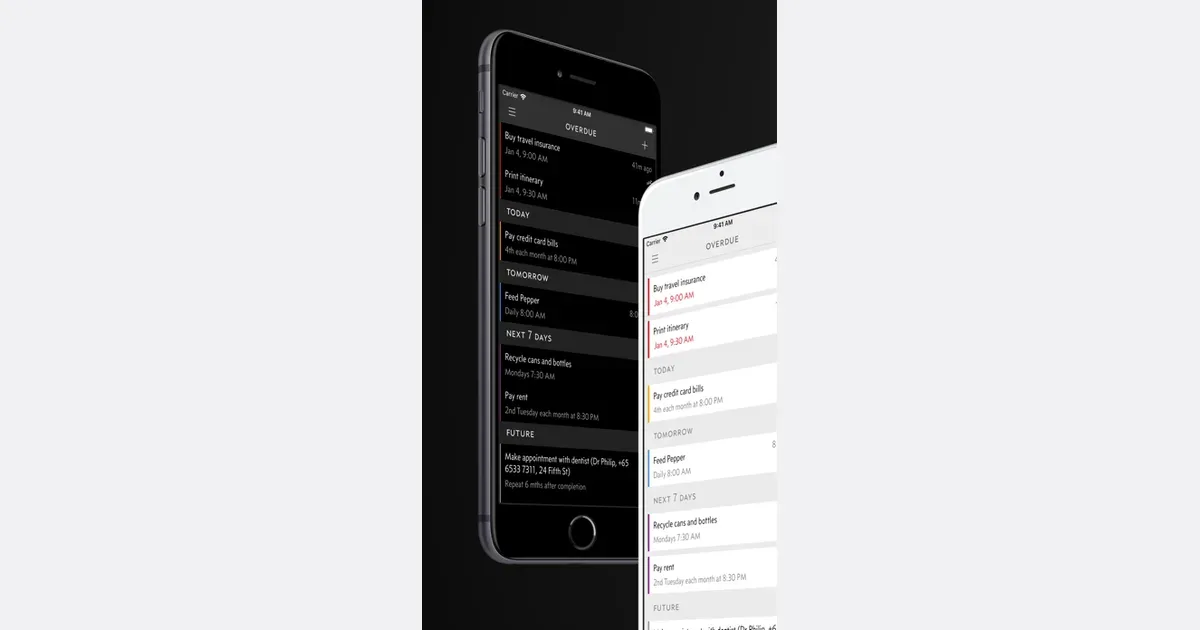

If every task sends an alert, try reviewing which prompts actually ask you to act at a useful time. Keep essential alerts intact. For ordinary errands and admin, test a small list review and reserve repeating alerts for the few tasks where you deliberately want another prompt.
The goal is a clear choice when an alert arrives: act, reschedule, or remove an ordinary reminder you no longer need. This is an organization exercise, not a claim that fewer alerts will improve ADHD symptoms.
Check three ordinary reminders
Choose three recent prompts about low-stakes tasks, such as filing a receipt or taking out recycling. For each one, ask: “Could I do this where I was?” and “Did I know what action it meant?” A prompt to “sort things” needs clearer wording. A prompt that arrives during a meeting may need a different time.
Do not use this cleanup exercise to change medication, safety, security, or other critical alerts. Start with tasks whose timing you can adjust without harm.
Separate a list review from a task alert
CHADD advises checking a planner regularly. Its day-planner guidance supports the habit of returning to a plan. That broad advice does not establish an ideal notification count or prove that either app below will suit you.
TickTick includes a daily reminder to review tasks and plan the day. The official features page describes that prompt. If you already keep tasks there, use a review time when you can actually open the list. During the review, pick the next action and notice any real deadlines; do not add an alert to every item by default.
Get monthly app discoveries and focus tips
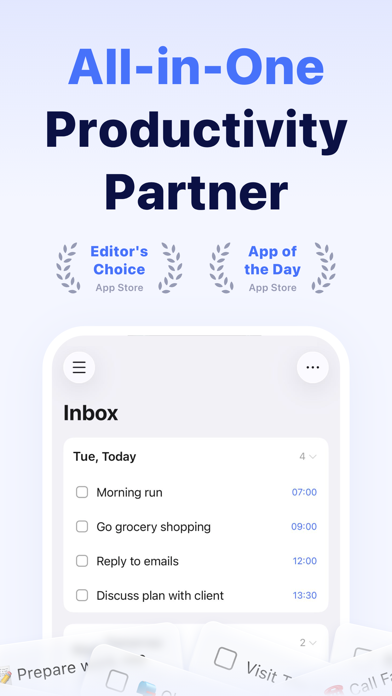
If the list is so large that a review feels unworkable, use the guide to choosing task priorities for a separate selection exercise. Reminder cleanup answers “when should this prompt appear?” rather than “which task matters most?”
Use repeat prompts deliberately
Due repeats overdue reminders until you complete them, reschedule them, or turn off auto snooze. The official page explains that behavior. It may fit an ordinary task for which you want another prompt after the first. Avoid placing the same task in two alert systems during this trial.
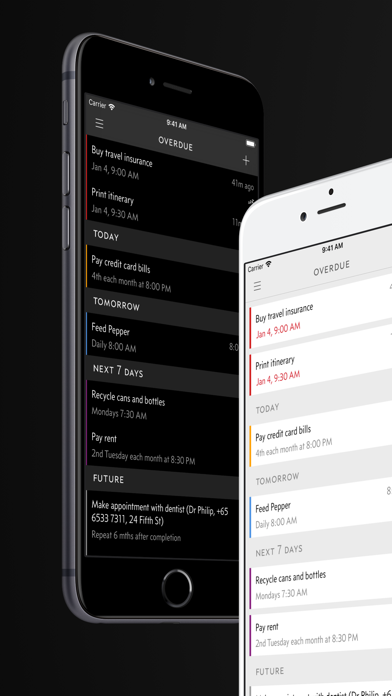
Choose a concrete label, such as “put the signed form in the bag.” If you cannot act when the prompt arrives, decide on a realistic new time. Repeated sound can itself be unwelcome, so test this with one ordinary task before adding more. A prompt is only a cue; it cannot complete the task or make the time suitable.
Review the result at your next check
Ask whether each prompt arrived where you could act, named a clear action, and deserved your attention. Keep useful reminders. Rewrite a vague label or adjust an unsuitable time. If a task belongs on a reviewed list without an alert, try that arrangement for one day.
A smaller reminder experiment
- Choose three ordinary prompts to inspect.
- Keep critical alerts intact.
- Use one planned list review for flexible tasks.
- Test a repeating prompt on only one task that needs it.
- Change the wording or timing if you still dismiss it without a decision.
At your next list check, rewrite one vague reminder as an action you can carry out in the place where it will appear.