

Category guide

    Calendar and scheduling apps for ADHD

    Explore calendar and scheduling apps. Compare daily views, reminders, calendar sync and rescheduling to make room for appointments, tasks and transitions.

    Explore the tools ↓
    A flexible calendar with lilac and yellow time blocks, open space and a movable block.
    On this page

    01 · A starting point

    Find a starting point

    Putting plans on a timeline can make a busy day easier to understand. Some calendars focus on appointments; others help place tasks between them. Look for a view that shows your commitments clearly and leaves room for travel, preparation and changes.

    Automatic scheduling depends on the estimates and priorities you give it. A full-looking calendar can still be unrealistic if tasks take longer or your energy changes.

    02 · Choosing a tool

    What to look for

    A day you can understand
    Try the daily and weekly views with your actual commitments. Check whether events, tasks and free time are easy to tell apart.
    The calendars you already use
    Verify support for your work and personal accounts, including shared calendars. Check whether changes sync both ways and how conflicts appear.
    Preparation and transition time
    Look for reminders and buffers that help you prepare or move between activities, rather than only telling you an event has begun.
    Easy changes
    Try moving a task or missing a planned block. Choose a tool that makes revising the day straightforward without rebuilding everything.

    03 · Directory listings

    Explore the tools

    A selection of current matching listings, shown A–Z. A category match is a starting point: check each listing for features, pricing and fit. Featured is paid promotion; Our Pick is an editorial selection.

    Akiflow logo

    Calendar-centered task management with keyboard-first workflow

    Akiflow is a task and calendar planner built around bringing responsibilities into one inbox and deciding when to work on them. It combines task capture with time blocking, making it possible to see a piece of work alongside meetings rather than leaving it in a separate list. Integrations can collect actions from other tools so they can be considered in one planning routine. A practical workflow begins by reviewing the inbox and clarifying what each item actually requires. A message that says to prepare a proposal might become several actions, each with a realistic duration. You can then plan those actions in available calendar space or reserve a broader project time slot. Drag-and-drop scheduling and natural-language input provide different ways to make those decisions. Akiflow's wider feature set includes calendar connections, project organization and an AI assistant called Aki. Supported integrations include common calendar, email and communication tools, with the exact arrangement depending on your accounts and setup. Review the permissions and the specific import behavior before connecting every source of work at once. The approach may suit people whose tasks are scattered across several services and who want one deliberate place to plan the day. Its value depends on maintaining that planning habit: importing everything without deciding what belongs on today's schedule can simply create a larger inbox. Begin with one or two integrations, use descriptive action titles and leave space for interruptions. Akiflow can make the relationship between a task and available time clearer, while deciding what to decline, postpone or simplify remains a personal or team responsibility.

    Helps with

    BrowserAppleMobile
    $14.90-34/month
    View
    Calendly logo

    Eliminate scheduling back-and-forth with shareable booking links

    Calendly is a scheduling service that lets other people book a meeting within availability you define. Instead of exchanging several messages about possible times, you share a booking link or embed scheduling in a website. Connected calendars help the service offer times around existing commitments. A useful first setup is one meeting type with a clear purpose and duration. For example, you could offer short introductory calls on selected afternoons, add a buffer between appointments and limit how far ahead someone can book. The other person chooses an available slot, while the meeting information is placed into the connected scheduling workflow. Testing the link as an invitee is a practical way to catch confusing descriptions or overly generous availability. Calendly also supports different arrangements for group and multi-host meetings, reminders, routing and team scheduling. Its broader offering now includes meeting-related AI tools and follow-up capabilities. Availability varies by plan, so separate the basic booking need from optional automation when comparing the service. Team calendars and client-facing workflows may require more configuration than a simple personal link. Calendly may fit freelancers, teachers, teams and other people who frequently coordinate appointments. The important trade-off is that easy booking can also make it easy for the calendar to fill. Set realistic meeting hours, include preparation and transition time, and keep the event description specific enough for someone to know what they are booking. It reduces the coordination around an appointment; it does not decide whether that appointment is necessary or replace time reserved for focused work.

    Helps with

    Browser
    Free / $10/mo
    View
    Fantastical logo

    Natural language calendar with DayTicker and meeting scheduling

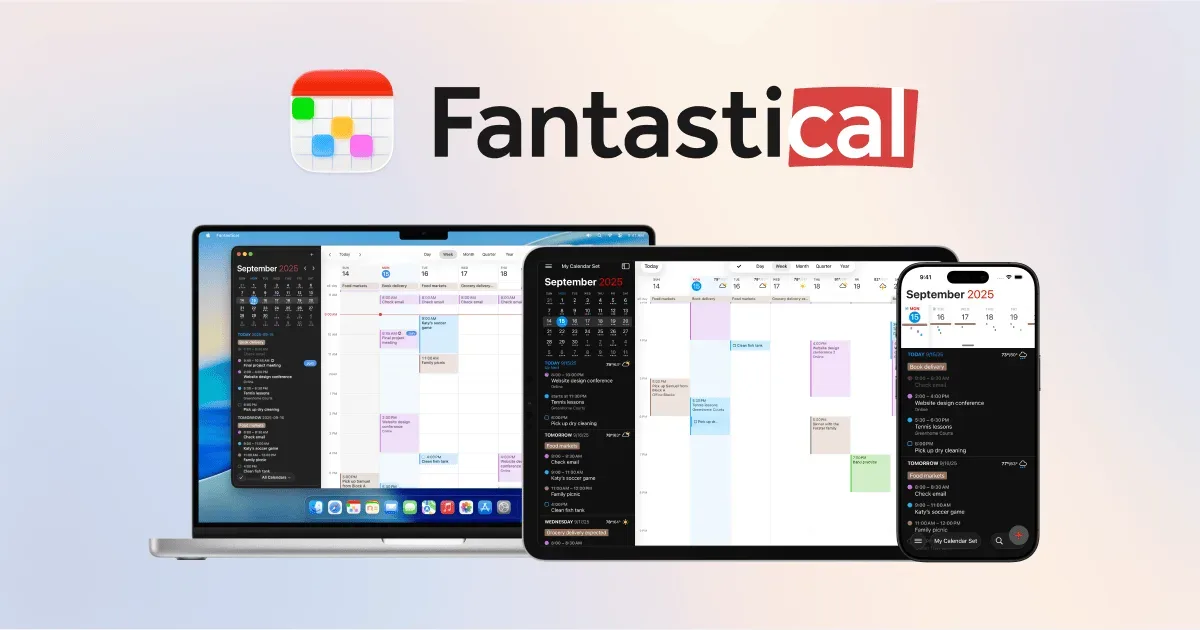
    Fantastical is a calendar and task app for viewing several schedules through one interface. It connects to existing calendar services rather than requiring every event to be moved into a new standalone calendar. This can be useful when work, family and personal commitments live in different accounts but still compete for the same hours. A practical starting point is to connect only the calendars you need to make everyday decisions. Review how a normal day appears, then choose views or calendar sets that suit different contexts. Separating a work-focused set from a personal one can make the display easier to read while still allowing you to check the wider picture before accepting another commitment. Natural-language event entry provides a quick way to create an appointment from a sentence. Fantastical also connects with supported task services and offers additional scheduling capabilities through its paid offering. Features and availability differ by device and plan, so verify the account types, task integration and meeting tools relevant to your setup before depending on them. Fantastical may suit people whose main problem is fragmented calendar information or cumbersome event entry. The benefit is smaller if one simple calendar already shows everything you need. It is also worth distinguishing a calendar display from a plan for the work between meetings: seeing a free space does not automatically mean you have the energy or preparation time for another appointment. Begin with a readable combination of calendars and a habit of checking the day as a whole, then add more scheduling tools only when they solve a recurring problem.

    Helps with

    Apple
    Free / $4.75/mo
    View
    Lithic UK logo

    A zero-friction notes and productivity app

    Helps with

    BrowserMobileWindows
    Free
    View
    Motion logo

    AI calendar that automatically schedules tasks and meetings

    Motion is a work-planning platform that uses task information and calendar availability to build and adjust a schedule. Instead of keeping a separate task backlog and manually placing every item into a calendar, you provide details such as deadlines, duration, priority and dependencies. The system uses those inputs to propose when the work should happen. A practical first project could contain a few clearly defined actions for an upcoming deliverable. Estimate how long each will take and enter the real deadline, then inspect the resulting plan. If a new meeting or higher-priority request changes the day, Motion can revise the schedule rather than requiring every block to be moved by hand. The value depends on whether the task information and calendar boundaries reflect your actual working conditions. Motion's broader offering includes projects, meeting-related tools, documents and AI-assisted workflows. Team capabilities extend planning across responsibilities and handoffs. These are useful distinctions when comparing plans: a person looking for help placing individual tasks in a calendar may not need the same product breadth as a team coordinating delivery. The central trade-off is giving an automated planner enough reliable information. Unrealistic duration estimates or an overloaded backlog can produce a schedule that looks precise but is still difficult to follow. Begin with a small set of work, review the proposed arrangement and leave room for interruptions and breaks. Motion may suit people who repeatedly postpone deciding when to do a task. It is less appealing if you prefer a loosely structured day or do not want a system continuously rearranging the plan.

    Helps with

    BrowserAppleMobile
    $19-49/month
    View
    Reclaim.ai logo

    AI scheduling that protects focus time and syncs with your calendar

    Reclaim.ai is a calendar-planning service that schedules time for work and routines around existing events. It connects with Google Calendar or Outlook Calendar and can place tasks, habits, focus periods and supported meetings into available space. Rather than treating each block as permanently fixed, it can adapt the arrangement as priorities and calendar commitments change. A useful first experiment is one recurring activity that you want to protect without assigning it an inflexible time. For example, you might reserve a reading period or an administrative task within a defined window, then inspect where the service places it. That makes it easier to judge whether the scheduling preferences match your real day before adding an entire task backlog. Reclaim also offers calendar synchronization and team-oriented scheduling tools. Its current product includes features for coordinating meetings, protecting focus time and understanding organizational time patterns. Free and paid plans have different scheduling ranges, allowances and administrative capabilities, so check the limits for your own use case rather than assuming an individual setup and a team rollout are equivalent. Reclaim may fit people who repeatedly lose intended work time to meetings or who want flexibility around recurring routines. It still depends on sensible priorities and a calendar that represents genuine commitments. If every activity is urgent, automation has little room to make a helpful choice. Start with one scheduling problem, review the resulting blocks and keep some room for changes. It is a planning aid rather than a reason to account for every minute or give an automated system authority over every part of the day.

    Helps with

    Browser
    Free Lite / $8/month Starter / Custom pricing
    View
    Routine logo

    All-in-one planner combining tasks, notes, and calendar

    Routine combines tasks, calendars, notes and project information in one workspace. Its planning view places work beside existing meetings, helping you decide when an action can happen instead of keeping a task list and a calendar mentally synchronized. The current product also offers AI assistance, meeting notes and automations for people who want to connect more of their work. A basic workflow starts with quick capture: use the desktop hotkey or another input route to record an action before switching away from the current task. Add context, organize the item with a project or label, and review it alongside your calendar. You can schedule work for a date or block a period for it, while multiple calendar layouts provide different views of the week. Support for several time zones helps when meetings cross locations. Notes and project information can stay close to the task they explain. Routine’s broader tools include meeting recording and summaries, voice input, integrations and customizable objects or databases. These features are optional directions for extending a planning system, not prerequisites for keeping a useful daily list. Calendar operations synchronize with connected accounts, so review the current supported services and permissions before connecting work calendars or recording meetings. Routine may suit someone whose main difficulty is moving between an inbox of commitments and a realistic view of their available time. Its flexibility also means there is room to spend more time designing the workspace than using it. Test one calendar connection and one project first. Confirm that capture and editing work comfortably on your devices, leave buffers between commitments, and revisit unfinished tasks deliberately. AI suggestions and automatic summaries should be checked before they become shared instructions or firm commitments.

    Helps with

    AppleWindowsMobile
    Free / $12/mo
    View
    SavvyCal logo

    Scheduling with recipient availability overlay and frequency limits

    SavvyCal is a scheduling service for finding a meeting time without a long exchange of availability messages. You create a link with the meeting's duration, participants and availability rules, then share it with the people who need to book. Its calendar-oriented booking page lets a recipient optionally overlay their own calendar while comparing possible times. The service connects to supported calendars to avoid offering times already marked busy and to create the resulting event. Current integrations include Google Calendar, Microsoft Outlook, iCloud Calendar and Fastmail, with conferencing options such as Zoom, Google Meet, Microsoft Teams and Whereby. The person booking through a link does not need a SavvyCal account. Availability rules provide more control than simply exposing every empty slot. You can add buffers, require advance notice, limit how far ahead people can book and cap meeting frequency. Separate links can serve different purposes, such as a short introduction and a longer project conversation. Team options include collective scheduling and round-robin assignment, depending on the setup and plan. A practical first link should offer only the times you are comfortable using. Preview it, test the duration and time zone, and check that the correct calendar receives the event. Leave space around meetings when preparation or travel requires it; an empty calendar slot does not necessarily mean you are available. You can connect calendars and prepare links for free, and some functions such as meeting polls and calendar overlays remain available without a paid plan. Taking bookings through your own scheduling links requires a paid subscription. Premium adds branding, delegated access and other advanced options. SavvyCal may suit someone who regularly arranges meetings and wants a considerate booking experience, while occasional scheduling may need only a simple exchange of a few proposed times.

    Helps with

    Browser
    Free / $12/month / $20/month
    View
    Structured logo

    Visual timeline planner that shows your day as a clear schedule

    Structured is a daily planner that displays tasks on a visual timeline. It brings to-dos and scheduled commitments into one picture, helping you see how a day might unfold instead of keeping a separate calendar and an unbounded task list. The timeline is the central organizing idea, with supported options for viewing the wider week or month. A practical first plan might include existing meetings, a few work periods and ordinary transitions such as lunch or travel. Giving a task a duration makes its cost visible: preparing a presentation takes a piece of the day even if it is not an appointment with someone else. This can make it easier to notice when the proposed plan is fuller than the hours available. Structured offers task creation, calendar-related integration, notifications and widgets, with device and plan differences described in its help center. Its visual approach may be useful for people who prefer seeing the order of activities rather than choosing from a list throughout the day. Begin with the platform and features you actually use, especially if synchronizing information across several devices is important. The trade-off is maintaining a plan when real life moves differently. A neat timeline can imply more certainty than a task estimate deserves, so leave space between demanding activities and revise the plan when needed. Start with a manageable part of the day rather than scheduling every minute. Structured can help make time and sequence concrete, while deciding what to postpone or leave out remains an important part of the planning process. A simple checklist may be easier when your day has very little fixed timing.

    Helps with

    Apple
    Free / $3.99/mo
    View
    Sunsama logo

    Guided daily planning with realistic workload warnings

    Sunsama is a daily planning app that connects tasks with the time available in your calendar. It is built around deliberately choosing a realistic day's work rather than treating the entire backlog as today's to-do list. People can bring responsibilities from other work tools into a single planning view while retaining the context of meetings and existing commitments. A practical morning routine is to review the tasks that could matter today, select the ones you can reasonably address and reserve time for them. You might pull an action from a project board, turn an email into a follow-up and place both around scheduled calls. Timeboxing makes the cost of those choices visible: if the calendar is already full, something needs to move rather than simply becoming another overdue item. Sunsama supports connections with project-management tools, calendars and communication services. Its product emphasizes planning, focused work and reviewing progress, with a paid subscription rather than a permanent free plan. Check the current integrations and access requirements, especially before connecting a work account that is subject to your organization's policies. The approach may suit people who already know their responsibilities but struggle to turn them into a manageable day. It asks for an active planning habit, so the planning session itself needs to remain proportionate. Start with a few meaningful tasks and allow some unscheduled space. Sunsama is most useful when it helps you make honest choices about capacity; it cannot make an impossible workload fit simply by arranging it more neatly on a timeline.

    Helps with

    BrowserApple
    $16/month ($20 monthly)
    View
    Tiimo logo

    Visual planner for neurodivergent routines and time management

    Tiimo is a visual daily planner designed around neurodivergent routines, task transitions and making time easier to see. It combines a to-do list, a visual schedule, a focus timer and optional AI planning. Colors, icons and other display choices help distinguish activities, while widgets keep the next part of the day accessible without repeatedly opening the full planner. You can begin with a brain dump of things you need to do, then give important activities a place in the day. Add a short checklist to an activity such as getting ready or doing laundry, estimate its duration, and use the visual timer while working through it. Calendar import brings existing commitments into the planning process, helping you avoid treating every hour as available task time. The AI co-planner accepts typed or spoken input and can suggest smaller steps, time estimates and a schedule. Treat those suggestions as a draft: adjust them to your energy, travel time and actual commitments. Tiimo’s current documentation lists Apple devices, Android and a web planner. Feature access varies by platform and subscription; the free mobile offering is more limited, while web access requires an active trial or subscription. Tiimo may be especially useful if a conventional list leaves you unsure what to do now, how long to stay with it, or what comes next. A visible sequence can make a routine easier to revisit without holding every step in memory. It still takes time to find the right amount of structure. Start with a familiar morning or evening routine, test notification and widget behavior on your own device, and leave room for interruptions. A schedule works best as something you can revise, rather than a measure of whether you have had a successful day.

    Helps with

    AppleBrowser
    Free / $12/month ($144/year) or $54/year
    View
    Trevor AI logo

    AI assistant that schedules tasks realistically on your calendar

    AI task planner connecting with Google and Microsoft calendars for intelligent scheduling. Analyzes work patterns to set realistic task durations. Features Task Hub with categorization, color coding, and Focus Mode with timer and actionable steps.

    Helps with

    BrowserAppleMobile
    Free / $5-6/month Pro
    View
    See all matching tools and filters →

    04 · Practical approaches

    Try an approach

    A tool can support an approach. These guides offer practical ways to try one in your everyday life.