
 Take the Quiz

Official product demo
Official demo · Provided by the owner
Watch on YouTube
Focus Timer
See your tasks on a clock face. Your pace is plain to see if you’re ahead or behind your plan.
A visual task timer that puts your tasks on a clock face, so your estimate and the time elapsed stay visible together.
Managed by developer
A visual task timer that puts your tasks on a clock face, so your estimate and the time elapsed stay visible together.
Daybearing puts your tasks on a clock face, keeping what you planned and what actually happened visible together.
On the clock face, the estimate is not replaced by a running timer. Both stay present, so you can tell whether the work is inside its estimate or beyond it.
Store past sessions info to review and export as plain text.
View tasks on the clock, organize and start the current work session, edit the plan, and set down work as plans change.
Note down work you don't want to forget or plan for right now. Make routines and move tasks to the current session.
The inner ring divides the clock into four-minute history marks. As you work, the marks turn green for tasks completed under their estimate, and red for tasks that took longer.
Slide the time ruler to set a task’s estimate. As you adjust it, the clock previews the task as an arc exactly where it will land after the work already in your queue.
Instead of pausing the session, Set Down saves the time already passed and queues the remaining work to start a future session.
Tap the dial to open Desk Mode and leave the rest of the interface behind. Double-tap the dial to complete the current task.
Set the size of the batch and the time you have. Daybearing helps you keep pace, one task at a time.
No accounts. No app analytics. No advertising.
Anyone who needs to break down work into smaller chunks.
Visualize distinct tasks, see your plan if you’re on pace or not, live.
100% local, no accounts. Syncing is encrypted.
Screenshot 1 of 6
Flat Price · $5
Pricing has not been verified by our editors.
Check current pricing on Daybearing’s websiteOfficial demo · Provided by the owner
Watch on YouTubeDaybearing is a $4.99 one-time purchase with no subscription.
Daybearing runs on iPhone and iPad and requires iOS 18 or iPadOS 18 or later. Android is planned.
No. The app has no account. Tasks and completed sessions stay on your device. Your devices stay in sync via encrypted iCloud syncing.
Yes. The Past screen can copy one session, one day, or all retained history as plain text, as a .tsv format. This is optimized for spreadsheets, but do whatever you want with it.

Visual planner for neurodivergent routines and time management
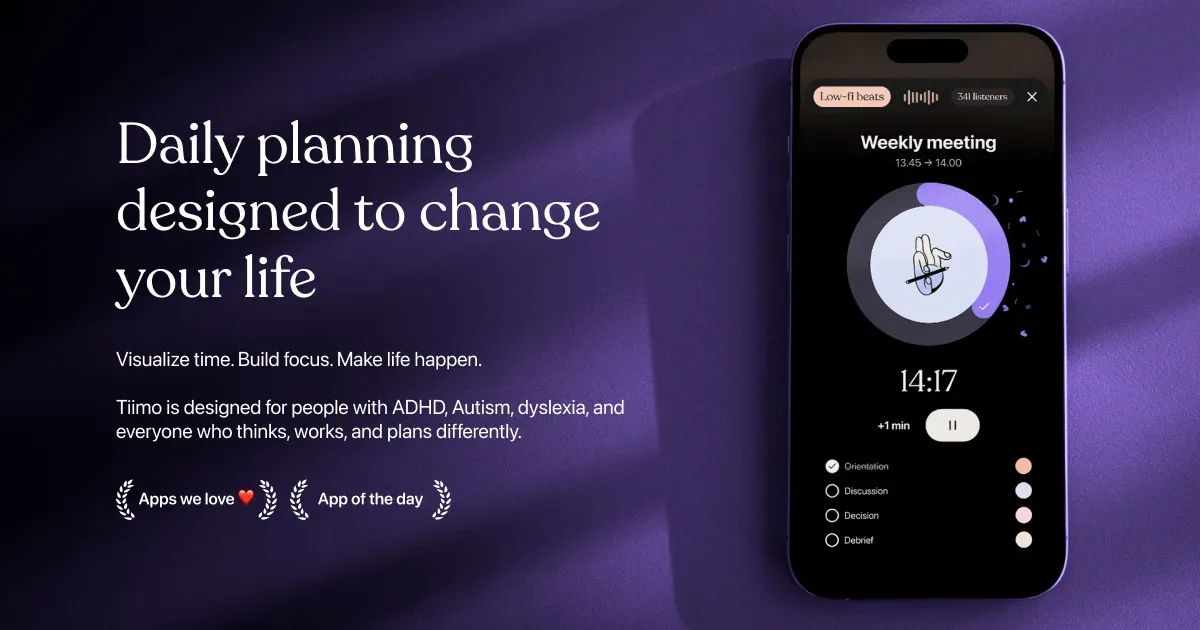
Tiimo is a visual daily planner designed around neurodivergent routines, task transitions and making time easier to see. It combines a to-do list, a visual schedule, a focus timer and optional AI planning. Colors, icons and other display choices help distinguish activities, while widgets keep the next part of the day accessible without repeatedly opening the full planner. You can begin with a brain dump of things you need to do, then give important activities a place in the day. Add a short checklist to an activity such as getting ready or doing laundry, estimate its duration, and use the visual timer while working through it. Calendar import brings existing commitments into the planning process, helping you avoid treating every hour as available task time. The AI co-planner accepts typed or spoken input and can suggest smaller steps, time estimates and a schedule. Treat those suggestions as a draft: adjust them to your energy, travel time and actual commitments. Tiimo’s current documentation lists Apple devices, Android and a web planner. Feature access varies by platform and subscription; the free mobile offering is more limited, while web access requires an active trial or subscription. Tiimo may be especially useful if a conventional list leaves you unsure what to do now, how long to stay with it, or what comes next. A visible sequence can make a routine easier to revisit without holding every step in memory. It still takes time to find the right amount of structure. Start with a familiar morning or evening routine, test notification and widget behavior on your own device, and leave room for interruptions. A schedule works best as something you can revise, rather than a measure of whether you have had a successful day.
Helps with
Suggested by Daybearing’s team · not an editorial recommendation

Visual timeline planner that shows your day as a clear schedule
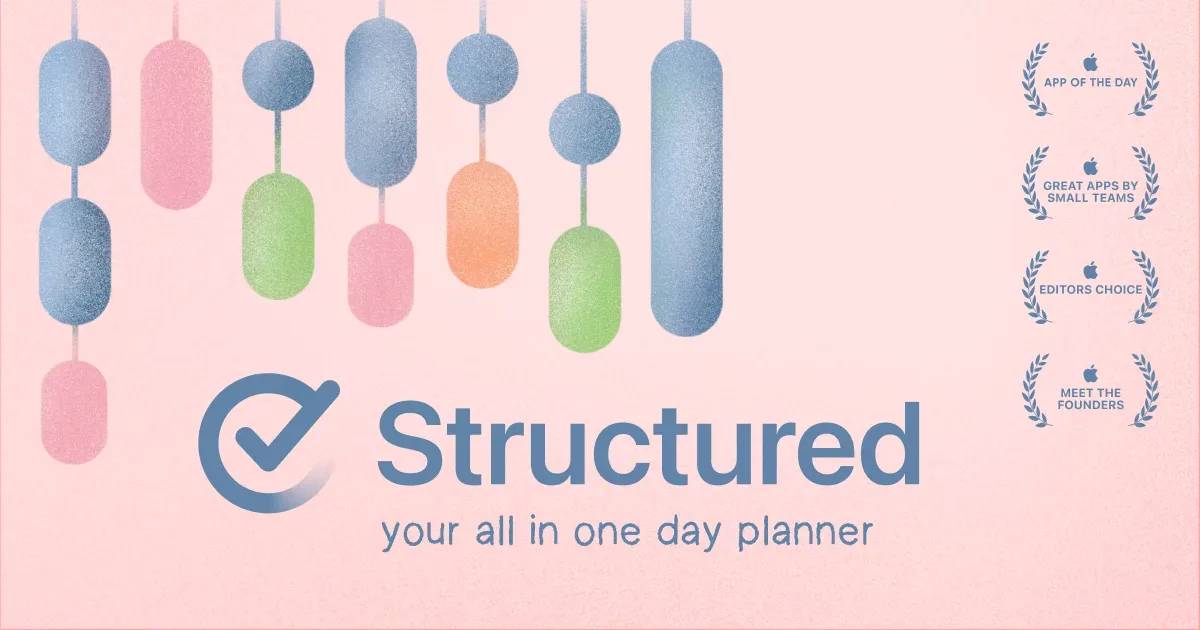
Structured is a daily planner that displays tasks on a visual timeline. It brings to-dos and scheduled commitments into one picture, helping you see how a day might unfold instead of keeping a separate calendar and an unbounded task list. The timeline is the central organizing idea, with supported options for viewing the wider week or month. A practical first plan might include existing meetings, a few work periods and ordinary transitions such as lunch or travel. Giving a task a duration makes its cost visible: preparing a presentation takes a piece of the day even if it is not an appointment with someone else. This can make it easier to notice when the proposed plan is fuller than the hours available. Structured offers task creation, calendar-related integration, notifications and widgets, with device and plan differences described in its help center. Its visual approach may be useful for people who prefer seeing the order of activities rather than choosing from a list throughout the day. Begin with the platform and features you actually use, especially if synchronizing information across several devices is important. The trade-off is maintaining a plan when real life moves differently. A neat timeline can imply more certainty than a task estimate deserves, so leave space between demanding activities and revise the plan when needed. Start with a manageable part of the day rather than scheduling every minute. Structured can help make time and sequence concrete, while deciding what to postpone or leave out remains an important part of the planning process. A simple checklist may be easier when your day has very little fixed timing.
Helps with

Reminders that nag you until you actually do the thing
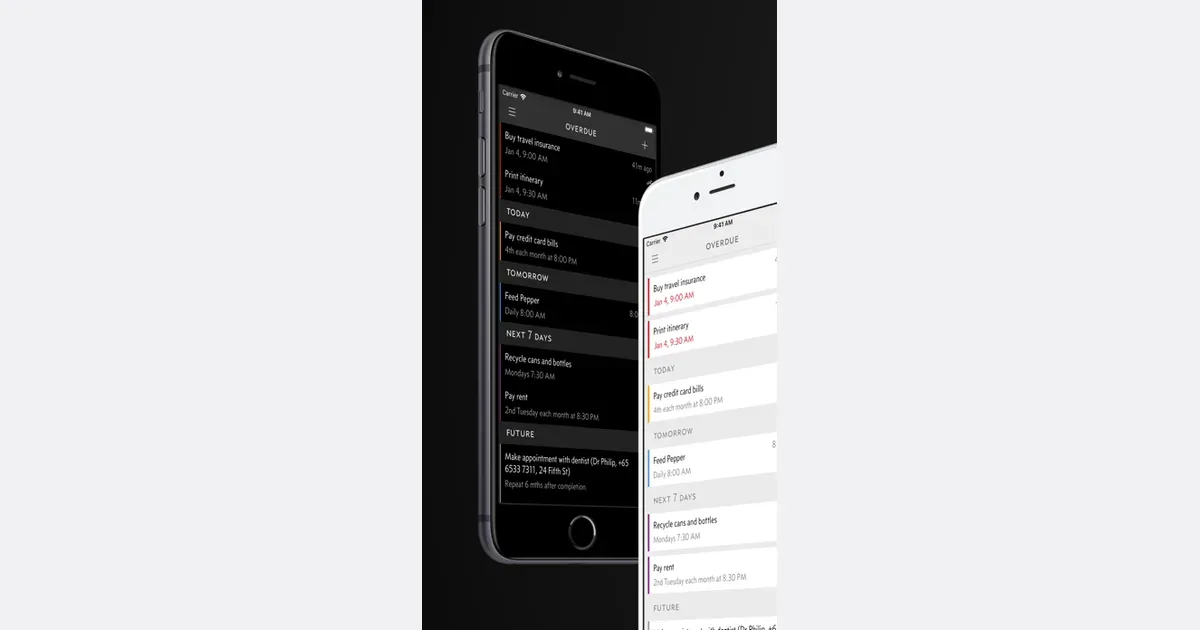
Due is a reminder and reusable timer app for Apple devices, built around making an important prompt hard to lose among other notifications. Its distinguishing feature is Auto Snooze: an overdue reminder can notify you repeatedly until you complete it, reschedule it or turn off that behavior. That makes it useful when a single notification is easy to dismiss and forget. Creating a reminder is designed to be quick. Customizable quick-access times let you choose familiar times of day or shift a reminder forward without repeatedly scrolling through a picker. When the alert arrives, notification actions let you mark it complete or postpone it without opening the full app. You can use this for a small set of concrete follow-ups, such as returning a call or checking an item before leaving home. Recurring reminders include selected weekdays, intervals of days or months, and repetition based on completion. Due also provides countdown timers that can run together and be reused, such as a saved timer for tea or a regular household task. Reminders and timers can sync through iCloud or Dropbox between supported Apple devices. The iOS and Mac apps are separate purchases, and optional Upgrade Pass arrangements apply to additional feature upgrades; check the current store offering for your devices. Due is especially relevant when remembering to revisit a task matters more than categorizing a large project. Its documentation requires reminders to have a due date, so it is less suited to an undated backlog. Repeated alerts can become noise if every item is treated as urgent. Reserve persistent reminders for a few actions you intend to respond to, and set a realistic next time when you cannot act. The app can keep bringing a prompt back; it cannot decide which commitments deserve your attention.
Helps with
AI assistant that schedules tasks realistically on your calendar
Trevor AI is a web planner that places tasks alongside your calendar. It supports manual time blocking as well as AI suggestions, helping turn a list of intentions into a visible plan for the day. The service works in a browser on desktop or mobile and offers a free personal tier with paid Pro options. To try it, gather a few tasks, check the appointments already occupying your calendar and give one task a realistic block of time. You can drag tasks into the schedule or review a suggested time. Starting with a single afternoon is a useful way to learn how the planner behaves without handing it an entire week of commitments. Trevor brings connected task lists and calendars into one view, with scheduling support for Google and Microsoft calendars. Its AI can suggest task durations and help plan a day or week. Focus Mode offers a timer, notes and a generated task breakdown so the scheduled task has a clearer next step. As with any generated schedule, you should review the result against deadlines, energy and obligations the app may not understand. This approach may suit people whose to-do lists rarely become protected time. It also introduces setup and maintenance: calendar connections need appropriate permissions, task estimates need correcting and plans need room for interruptions. A packed calendar is not automatically a workable day. Keep some unscheduled space while testing it, and check current plan limits before paying for features beyond the free tier.
Helps with