‹ AI Assistant / Planning
    The Undecider — Free ADHD Tools logo

    The Undecider — Free ADHD Tools

    Managed by developer

    AI Assistant / Planning

    The Undecider

    Can't decide what to eat?

    About The Undecider — Free ADHD Tools

    Managed by developer

    Can't decide what to eat? The Undecider is a free decision wheel — spin til you agree. Food wheels with 90 real recipes and grocery lists, plus custom wheels for any choice. Built for ADHD brains, works for anyone.

    Have you ever said “idc, you pick” — then argued because no one wanted to make a decision? Spin til you agree.

    90 real recipes on the wheel. Pick a meal — spin, then cook it.

    You finally sit down. Dinner is done, the couch is right there, and all you want is to watch something good.

    Forty minutes later you are still scrolling.

    You have read the same rows three times, opened a trailer, closed it, checked a rating, and argued a little. The services are not short on options. That is exactly the problem.

    The watch wheel in the Undecider, at the top of this page, ends that in about ten seconds. Put the real contenders on a wheel, spin it, notice your reaction, and press play.

    Choosing a movie or a show sounds like the relaxing part of the night, but it stacks the same traps as every other hard decision:

    ADHD brains feel this harder, because the scroll itself becomes the activity. Each new poster is a small hit of novelty, and settling feels like giving up. Anyone with two remotes and three subscriptions has lived it.

    Separate choosing the list from choosing the winner. The list gets built once, when nobody is tired. The winner gets picked in the moment, by a spin.

    Now movie night becomes one small question: which of these few good options is it tonight?

    Here is how to use it once everyone is on the couch, because the landing spot is only half of it:

    You are not really letting the wheel choose. You are using it to find out what the couch actually wanted, faster than debating every poster.

    That is why it works for couples and groups. Everyone's pick goes on, the wheel lands where it lands, and nobody chose, so nobody lost. If the pick is a dud, blame the wheel and swap it out for next time.

    Once a spin feels right, press play within a minute. Do not reopen the apps to double-check. The second search is how the first forty minutes happened.

    Keep the list honest, too. Finished something? Take it off. Spin past the same title for two weeks? Your reactions have been voting. Take it off without guilt.

    What should go on the wheel, movies or shows?

    Either, or both. Keep one night's real contenders together: a few movies and a few shows you would all be happy to start tonight.

    What if we cannot agree on what goes on the list?

    Give everyone the same number of picks. Each person adds two titles, no vetoes during the building stage. The spin settles the rest, and a title nobody wants will show it fast in everyone's reaction.

    What if the wheel lands on something we have already seen?

    Rewatches are fine if the couch is happy, and comfort picks often win for a reason. If you wanted something new, take that title off and spin again. That is the reaction trick working, not failing.

    Yes, completely. Spin as much as you want. One email saves your custom wheels so they follow you between devices, but nothing about spinning is locked.

    The movie was never the hard part. The deciding was, and it was eating the very night you were trying to enjoy. Build the wheel once, spin it at the top of this page, trust the reaction around the couch, and watch something.

    The Undecider was made by an ADHD brain, for ADHD brains, and it works for anyone who has ever spent longer choosing a movie than watching one.


    Key features

    • Why picking something to watch takes so long

      Choosing a movie or a show sounds like the relaxing part of the night, but it stacks the same traps as every other hard decision:

    • Build the wheel before the couch argument starts

      Separate choosing the list from choosing the winner. The list gets built once, when nobody is tired. The winner gets picked in the moment, by a spin.

    • Spin til you agree

      Here is how to use it once everyone is on the couch, because the landing spot is only half of it:

    • Frequently asked questions

      What should go on the wheel, movies or shows?

    • Press play. Keep the night.

      The movie was never the hard part. The deciding was, and it was eating the very night you were trying to enjoy. Build the wheel once, spin it at the top of this page, trust the reaction around the couch, and watch something.

    The Undecider — Free ADHD Tools pricing, explained

    Free

    Pricing has not been verified by our editors.

    Check current pricing on The Undecider — Free ADHD Tools’s website

    All The Undecider — Free ADHD Tools tags

    Platforms

    Web

    The Undecider — Free ADHD Tools alternatives

    Explore all The Undecider — Free ADHD Tools alternatives →
    Ellie logo

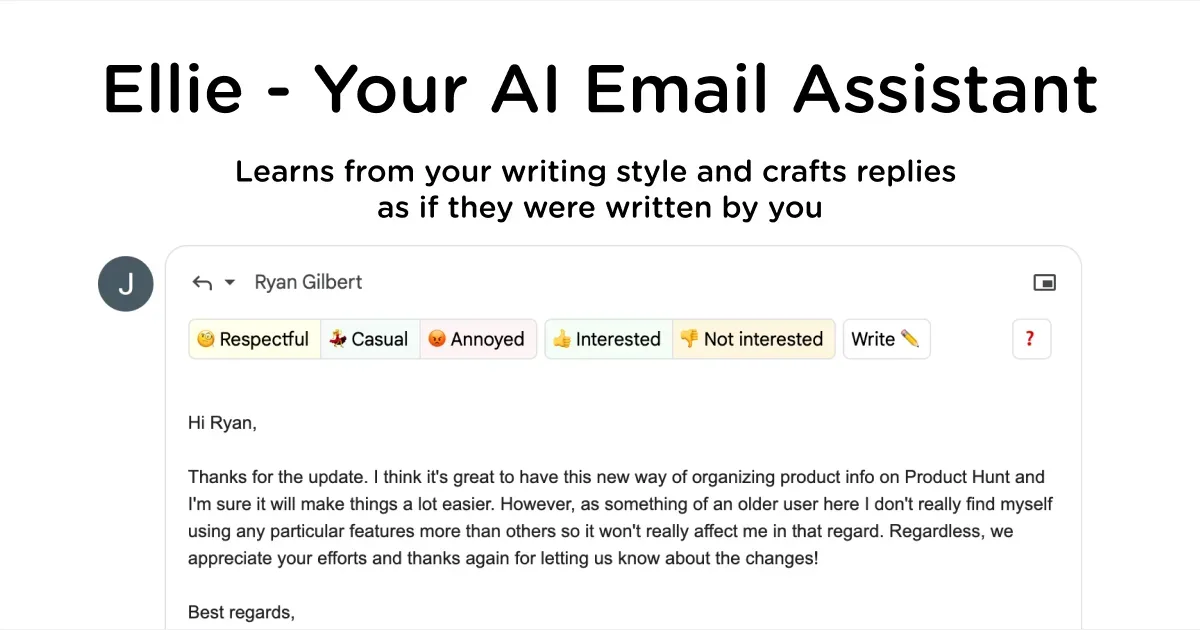
    AI email assistant that learns your writing style

    Ellie is an AI email assistant that prepares reply drafts inside Gmail and Outlook. Its current service connects to your inbox, uses conversation context and learns patterns from sent messages to suggest replies in your writing style. You review the drafts and decide what to send. A useful first test is a small set of routine messages where you already know the answer. Compare the draft with the thread, correct factual details and check that the tone fits the recipient. This makes it easier to judge whether editing a suggestion saves effort compared with writing from scratch. Important commitments and sensitive conversations still deserve careful personal attention. The product also offers custom categories described in ordinary language. Categories can determine which messages receive drafts, which are left alone and which writing role is used. For business use, connected documentation can provide reference material for replies. Those capabilities require configuration: the assistant needs clear instructions and reliable source information to produce useful results. Ellie may help when the first sentence of a reply is a recurring barrier, or when similar questions consume a large part of the day. It also requires granting access to email, so review its current permissions and privacy terms before connecting an account. Generated wording can miss context or sound more certain than you intend. The website advertises a seven-day trial without a credit card; verify the selected paid plan and any limits before continuing.

    Helps with

    Browser
    Free Trial
    View
    Goblin Tools logo

    AI-powered tools designed for neurodivergent minds

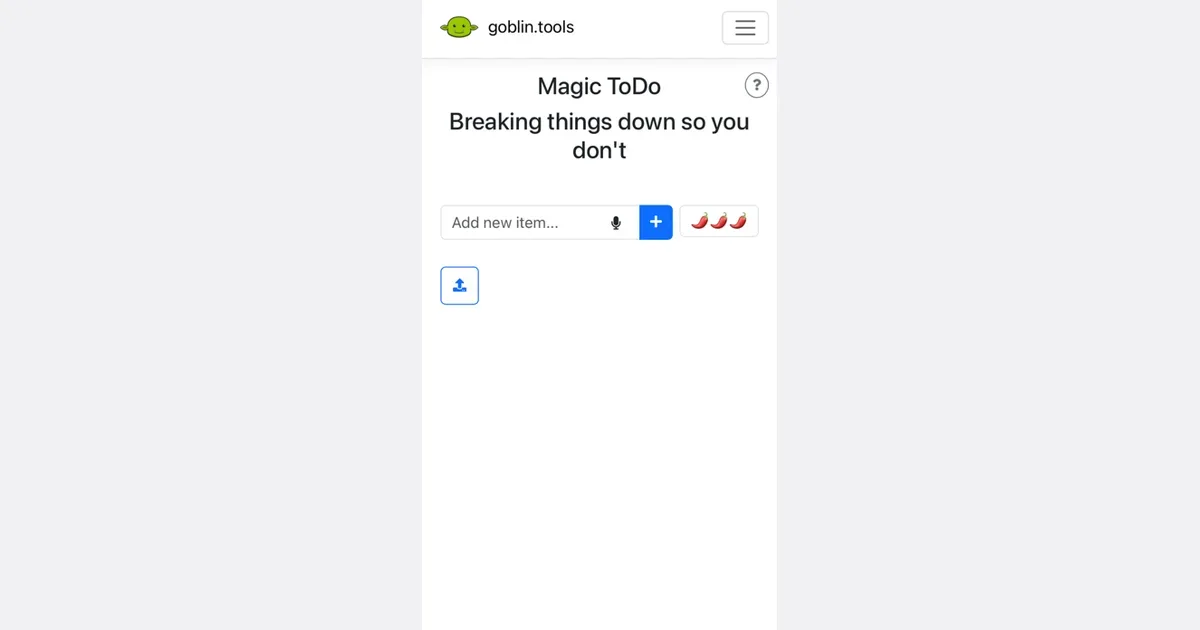
    Goblin Tools offers small AI helpers for everyday tasks that feel difficult to untangle. Its tools cover planning, writing, understanding messages and meal ideas, so you can use the part that helps with your immediate problem without designing an entire productivity system. The creator describes the collection as primarily intended for neurodivergent people, while keeping it available to anyone. Magic ToDo turns a task into suggested smaller steps. You can adjust the spiciness setting to request more detail, break down a subtask again, edit the result and check off completed items. For a practical starting point, enter one household job or work assignment, remove steps that do not apply, and choose a first action you can actually do. Export options let you move a breakdown into another tool, although task hierarchy and completion status can change between formats. The other helpers address different sticking points. Compiler turns a brain dump into actions; Estimator suggests a possible duration; Formalizer changes writing tone; and Judge offers an interpretation of a message. Professor, Consultant and Chef provide explanations, decision support and recipe ideas. These are generated suggestions to review, rather than reliable statements about another person’s intentions or guaranteed plans. The website keeps its existing core tools free, with paid mobile apps and an optional Pro subscription for some advanced features. Goblin Tools may be a useful starting aid when the planning itself feels overwhelming. You still need to check the output, adapt estimates to your circumstances and decide which actions are appropriate.

    Helps with

    BrowserAppleMobile
    Free and Paid Plans
    View
    Motion logo

    AI calendar that automatically schedules tasks and meetings

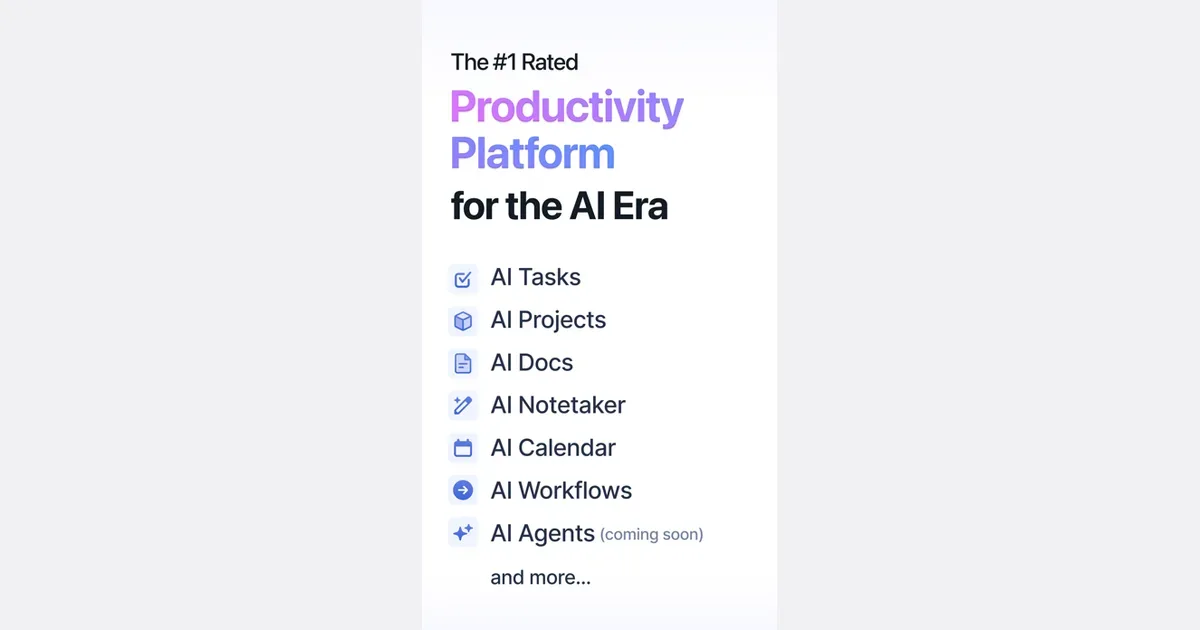
    Motion is a work-planning platform that uses task information and calendar availability to build and adjust a schedule. Instead of keeping a separate task backlog and manually placing every item into a calendar, you provide details such as deadlines, duration, priority and dependencies. The system uses those inputs to propose when the work should happen. A practical first project could contain a few clearly defined actions for an upcoming deliverable. Estimate how long each will take and enter the real deadline, then inspect the resulting plan. If a new meeting or higher-priority request changes the day, Motion can revise the schedule rather than requiring every block to be moved by hand. The value depends on whether the task information and calendar boundaries reflect your actual working conditions. Motion's broader offering includes projects, meeting-related tools, documents and AI-assisted workflows. Team capabilities extend planning across responsibilities and handoffs. These are useful distinctions when comparing plans: a person looking for help placing individual tasks in a calendar may not need the same product breadth as a team coordinating delivery. The central trade-off is giving an automated planner enough reliable information. Unrealistic duration estimates or an overloaded backlog can produce a schedule that looks precise but is still difficult to follow. Begin with a small set of work, review the proposed arrangement and leave room for interruptions and breaks. Motion may suit people who repeatedly postpone deciding when to do a task. It is less appealing if you prefer a loosely structured day or do not want a system continuously rearranging the plan.

    Helps with

    BrowserAppleMobile
    Free Trial
    View
    Tana Outliner logo

    All-in-one knowledge graph with AI automation for personal OS

    Tana Outliner is a connected note-taking and task-organizing workspace built around nested bullets, called nodes. It is the original Tana notes product, now named Tana Outliner; the separate meeting platform at Tana's main website is a different product. The outliner lets you capture an idea quickly and add structure as its purpose becomes clearer. You might start a daily note with meeting notes, a question and several actions. Applying a supertag such as task, project or meeting gives a node a consistent type and relevant fields. A task can have a status and a project connection, while a meeting can carry its date and participants. Search nodes gather matching items from across the workspace, so an action can remain beside the conversation that produced it and still appear in a task view. Supertags do more than label notes: their fields and templates provide a reusable structure. Links connect related material, and different views help you examine collections without rewriting the underlying notes. Mobile capture includes voice memos and quick notes, with transcription and structured capture workflows that can bring spoken information into the same workspace. AI features can help summarize or extract information, but generated details still need checking against your source. Tana Outliner may appeal to people who like outlining and want to build a personalized system for research, projects or recurring reviews. That flexibility has a learning cost: fields, searches and supertags require more setup than a basic notes app. Begin with a daily capture page and one practical tag, then add complexity only when a recurring need appears. Check the current plan and device capabilities before relying on a particular AI or mobile workflow.

    Helps with

    BrowserAppleMobile
    Free and Paid Plans
    View

    Side by side