


Guide#duplicate#purchases#check#home

    ADHD and duplicate purchases: check what you own before buying more

    Record a few easy-to-forget supplies, note where they belong, and check the list before your next purchase.

    ADHD Product DirectoryNovember 19, 20263 min read
    Labeled glass jars containing dry foods sit on white shelves.

    You buy another notebook, then find three unused ones in a drawer. Start with one small category of supplies you often forget you own. Record what is there, where it belongs and when you last checked it. Read that record before adding another item to your basket.

    NIMH lists trouble remembering daily tasks among possible adult ADHD symptoms. Its adult ADHD information provides context. The inventory exercise below is a proposed household routine. The source does not establish that these apps prevent duplicate purchases.

    1. Choose one small category

    Pick pens, printer paper, spare cables or another ordinary supply you tend to buy twice. Skip a whole-home inventory for now. Choose a shelf or drawer you can check without a large sorting project.

    Count unopened items and note partly used ones in plain terms. “Two full packs and one open pack” is enough if that tells you whether to buy more. You can leave out low-cost items you already remember reliably.

    2. Record the item and its location

    Airtable's inventory template includes a location field. The Airtable listing links to the product, and the official inventory template describes those fields. For this exercise, you could keep only item, amount, location and last checked date. This is a proposed adaptation of a business template for a small home list.

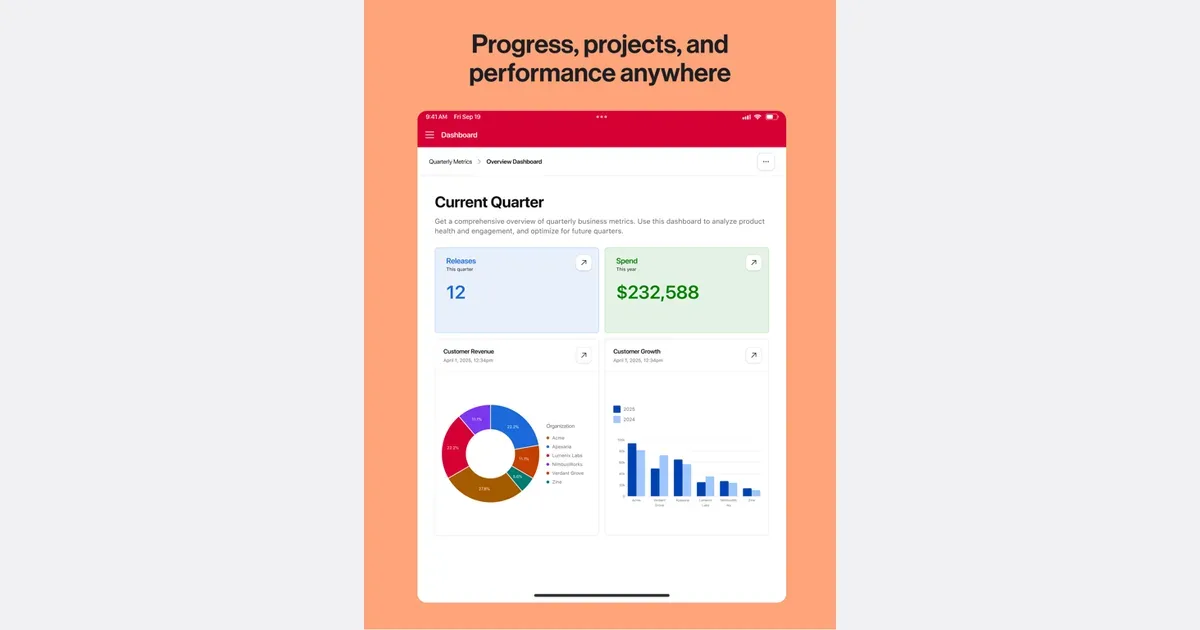
    Airtable screenshot from its directory listing

    A database may be useful if you already keep structured records. If choosing fields takes longer than checking the drawer, use a note instead. You do not need formulas, automated orders or a detailed price history for this exercise.

    Bear supports text, photos, tables and todo lists in a note. The Bear listing and official website describe the app. You could write a short supply list and attach a photo of the drawer. Use whichever record you can find easily before buying; keeping the same stock in two apps creates extra updates.

    Get monthly app discoveries and focus tips

    Bear screenshot from its directory listing

    3. Check the record before buying

    Before you add a tracked item to a shopping list, open its record. If it says you have enough, check the listed place when you can. If the count is old or uncertain, mark it “check at home.” Avoid turning an old entry into a confident guess.

    Choose your own simple buying rule. For example: buy printer paper when one unopened pack remains. A useful threshold depends on how often you use the item, how much space you have and how easy it is to replace. Start with an ordinary supply where running short has little consequence.

    This list is not suitable for tracking medication doses, safety equipment or other stock that requires a reliable specialist process. A missed update can make the count wrong. Check the item itself whenever accuracy matters.

    4. Update when you put things away

    After a purchase, put the item in the recorded place and update the amount. If another person shares the supply, agree who will update the record. A private list cannot reflect changes you never hear about.

    After one shopping trip, ask whether checking the list changed a buying decision. Keep only fields you used. If the record stayed unopened, move its link to the place where you write purchases, or return to a paper note on the cupboard.

    For food you have already decided to buy, the guide to grouping a grocery list by store section covers the next stage. This check answers an earlier question: do you already have the item?

    Try one category this week

    • Choose one drawer or shelf.
    • Record the item, amount, location and date checked.
    • Check the record before buying a tracked item.
    • Update it when you put supplies away.

    Before your next purchase, count one supply you often buy twice. Record where it is and use that entry for your next buying decision.

    Apps mentioned in this article

    Airtable logo

    Visual database that works like a spreadsheet but thinks like a database

    Airtable is a configurable workspace for organizing structured information and turning it into useful workflows. Its tables hold records with different fields, so a project can track a status, date, attachment and related information together. It suits work that needs more context than a checklist but does not justify building a custom system from scratch. For example, a content team could keep each article as a record, connect it to a campaign and track who is responsible for the next step. Different views can make the same underlying information useful for different jobs, rather than requiring a separate spreadsheet for each person. Forms provide a way to collect information consistently, and automations can move routine work along after a defined event. Airtable's current platform also includes AI-assisted app building and agents. These expand what a workspace can do, but the foundation remains deciding what information belongs in the system and how people will use it. Before adding automated steps, establish clear field names and a simple process that can be understood by someone else. The main trade-off is setup and ongoing maintenance. A flexible base can become difficult to follow if every exception creates another field, view or automation. Start with one small workflow and a handful of essential properties, then test it with real examples. Airtable may fit project trackers, inventories and shared operational records particularly well. A simpler task app may be easier when all you need is a short list of next actions. Check current plan limits and collaboration arrangements before making it a team's central workspace.

    Helps with

    AppleWindowsMobile
    Free; from USD 20/user/month (billed annually)
    View
    Bear logo

    Minimalist markdown notes with focus on simplicity

    Bear is a Markdown note-taking app for Apple's devices. It combines a writing-focused editor with tags for organizing notes, making it possible to start with a simple text collection and add structure as it becomes useful. The main appeal is keeping capture and writing close together without first designing a database or elaborate workspace. A practical setup might use a few broad tags for work notes, personal reference and writing ideas. A meeting note can contain the discussion, a short list of decisions and links or attachments you want to revisit. Clear titles and a small set of useful tags are often easier to maintain than a different organizational rule for every kind of note. Bear supports headings and folding for navigating longer writing, along with images, attachments and sketches. Its paid Pro offering adds capabilities such as supported OCR search, with current availability described in the feature comparison. If synchronization or a particular export format is central to your workflow, check the current plan details before moving a large collection into it. Bear may suit people who value a relatively direct writing environment and already work within compatible Apple devices. The trade-off is that a flexible note collection still needs some retrieval habits. Capturing an idea is only useful if you can find it when needed, and a large tag hierarchy can become as cumbersome as a large folder tree. Start with the notes you use frequently, pin or organize the important starting points and add complexity only when a real search or writing problem calls for it.

    Helps with

    AppleBrowser
    Free; USD 2.99/month or USD 29.99/year
    View