

Guide#working memory#shared tasks#follow-up

    ADHD and forgotten promises: track who acts next on shared tasks

    A four-step review separates work you owe from replies you are waiting for, using an existing list or table.

    ADHD Product DirectoryNovember 8, 20263 min read
    Two people review a notebook at a desk with an open laptop.

    You told a colleague you would send a file. They said they would confirm the date. By Friday, you can remember the chat but cannot tell who needs to act. If ADHD makes those shared commitments hard to follow, try a short check that separates your next action from a reply you are waiting for.

    You can try this on paper or in a tool your team already uses. Start with one conversation. A new system for every promise would add more work before you know whether this check helps.

    1. Write the promise as a result

    ADDA recommends writing down tasks, including small ones. Its organizing guide offers that advice; the shared check below is an editorial exercise, not a tested ADHD treatment.

    Write “Send the revised file to Jo” rather than “Jo project.” Add the file link and the date you agreed to. If there was no date, write “date not agreed.” Avoid turning a guess into a deadline that the other person never accepted.

    For ideas that have not yet become promises, use a separate quick-note capture routine. Put an item on this list only when someone expects an action or a reply.

    2. Name who acts next

    Put each item under one of two labels: “I act next” or “Waiting for a reply.” Write the person's name beside it. Before marking a task as waiting, check that you have actually sent the request. A draft email still belongs with your own actions.

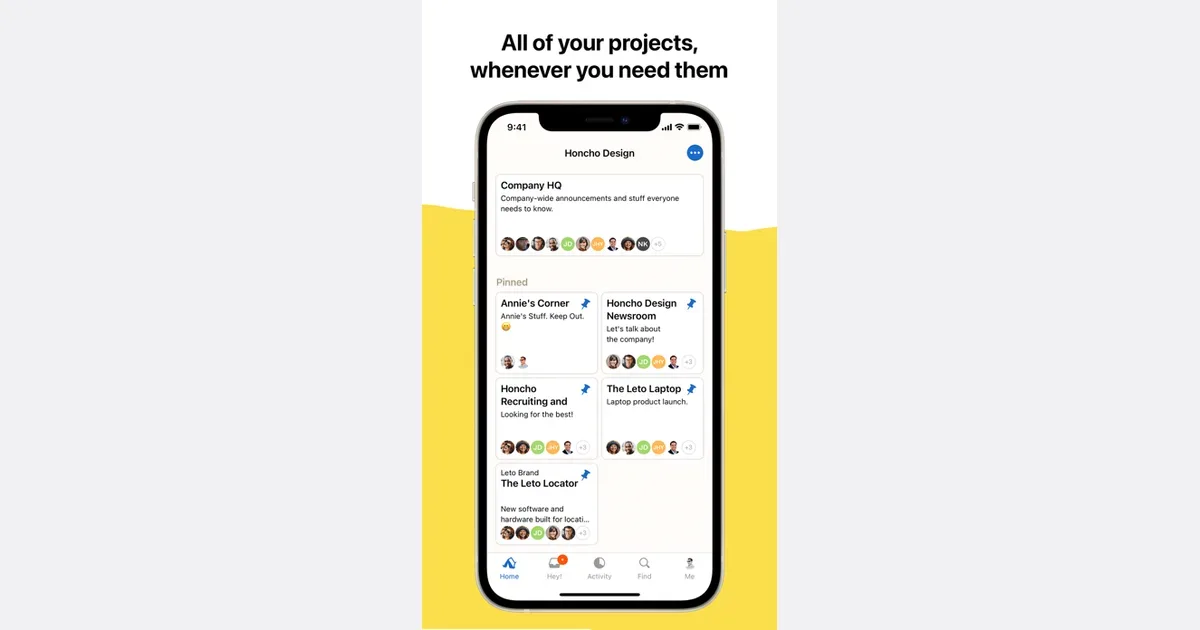
    Basecamp lets you assign to-do items and set due dates. The official feature page documents those functions. If your group already keeps its work there, try one clear owner and an agreed date on an existing item. The assignment field records a choice; ask the person to confirm that choice rather than treating it as consent.

    Get monthly app discoveries and focus tips
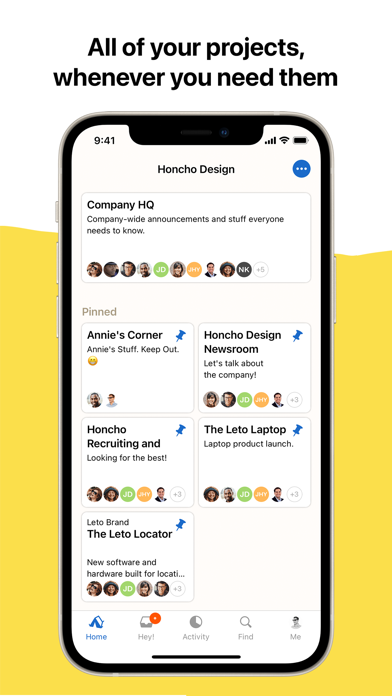
    Basecamp listing screenshot

    3. Keep waiting items visible

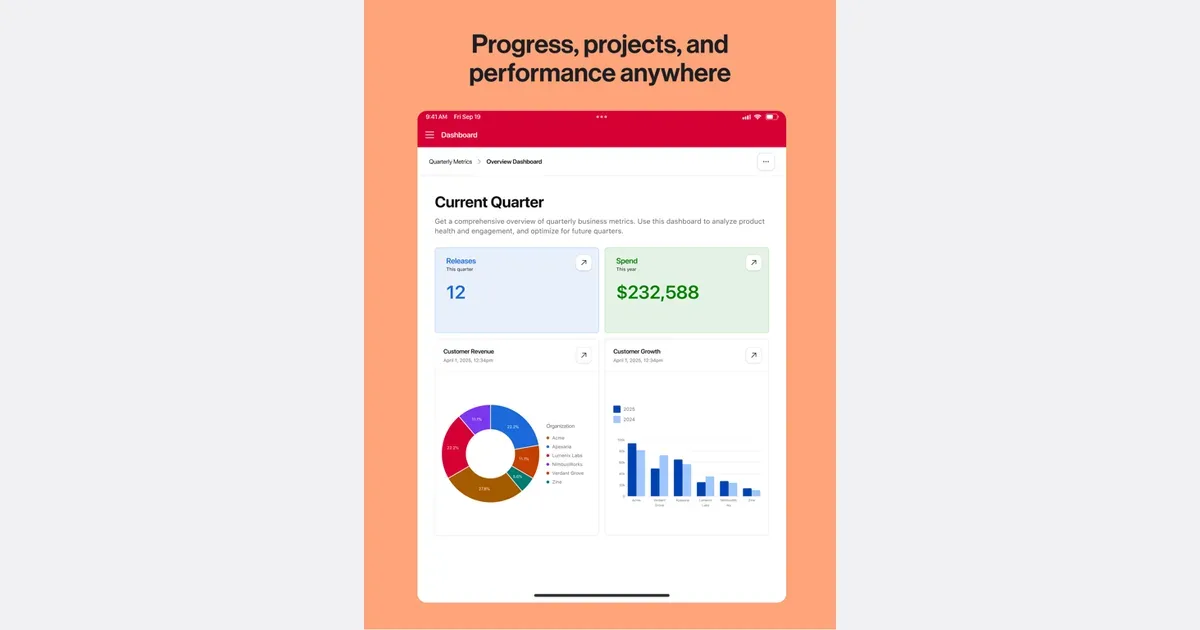
    Airtable view filters hide records from that view without deleting them. The official filter guide explains this behavior. If you already use a table, try a status field and a view for items waiting on a reply. Keep a second, unfiltered view so you can check what the focused view leaves out.

    Airtable listing screenshot

    Choose the tool your group will actually open. Do not copy the same commitment into both places unless you have a clear reason to keep two records. You will need to decide which record is current whenever they disagree.

    4. Follow up with one clear question

    At your next review, choose one waiting item. Ask, “Is Thursday still realistic for the file?” Give the person room to offer another date. If the next step feels socially difficult, the guide to asking for low-pressure support can help you plan a small, explicit request.

    This check cannot make someone reply or create time to do the work. If the list grows despite regular reviews, discuss scope or deadlines with the people involved. Adding more reminders may not solve that problem.

    Try it with one commitment

    • Write the expected result and link to the relevant file or conversation.
    • Name who acts next, and confirm any shared deadline.
    • Keep waiting items separate from actions you still owe.
    • Pick one question to send at your next review.

    Open one recent conversation now. Write the promise, its owner and the next agreed check-in before adding anything else.

    Apps mentioned in this article

    Airtable logo

    Visual database that works like a spreadsheet but thinks like a database

    Airtable is a configurable workspace for organizing structured information and turning it into useful workflows. Its tables hold records with different fields, so a project can track a status, date, attachment and related information together. It suits work that needs more context than a checklist but does not justify building a custom system from scratch. For example, a content team could keep each article as a record, connect it to a campaign and track who is responsible for the next step. Different views can make the same underlying information useful for different jobs, rather than requiring a separate spreadsheet for each person. Forms provide a way to collect information consistently, and automations can move routine work along after a defined event. Airtable's current platform also includes AI-assisted app building and agents. These expand what a workspace can do, but the foundation remains deciding what information belongs in the system and how people will use it. Before adding automated steps, establish clear field names and a simple process that can be understood by someone else. The main trade-off is setup and ongoing maintenance. A flexible base can become difficult to follow if every exception creates another field, view or automation. Start with one small workflow and a handful of essential properties, then test it with real examples. Airtable may fit project trackers, inventories and shared operational records particularly well. A simpler task app may be easier when all you need is a short list of next actions. Check current plan limits and collaboration arrangements before making it a team's central workspace.

    Helps with

    AppleWindowsMobile
    Free; from USD 20/user/month (billed annually)
    View
    Basecamp logo

    Simple team project management with everything in one place

    Basecamp is a project workspace that brings team tasks, discussions, files and schedules together. Each project has its own page with the tools needed for that piece of work. The aim is to keep context near the project rather than distribute it across an inbox, a chat room and several unrelated documents. A practical setup might use a message board for the project brief, a to-do list for actions and a calendar for important dates. An announcement can remain visible with its replies underneath, making it easier for someone joining later to understand a decision. Tasks can have owners and due dates, while files and reference material stay with the work they support. Basecamp also offers chat, automatic check-ins and Card Tables for work that moves through stages. Automatic check-ins can collect recurring updates without arranging another meeting, while Card Tables provide a board-like view for suitable workflows. The useful choice is which tools a particular project needs; activating everything can create additional places for the same information to accumulate. Basecamp may fit teams or client projects that want a shared home for communication as well as task tracking. Its approach works best when people agree where decisions and requests belong. If important instructions continue to arrive elsewhere without being captured, the project page will not tell the whole story. Begin with a clear brief, a small set of active lists and a convention for recording decisions. It is a coordination tool, while specialist planning or reporting needs may still require checking whether its current capabilities fit the way your team delivers work.

    Helps with

    AppleWindowsMobile
    Free; from $29/month for 5 users
    View