

Guide#working memory#file organization#retrieval

    Does ADHD make saved files hard to find? Name one file so you can retrieve it

    A simple filename pattern and one search check can make stored notes easier to locate later.

    ADHD Product DirectoryNovember 9, 20263 min read
    Hands, an open notebook, two laptops and a phone on a wooden table.

    A file can be saved correctly and still feel lost later if its name does not tell you what it contains. When you are switching between work, home, and personal projects, a short naming rule can make the next search easier. This guide focuses on one small habit: include the subject and a useful detail in the filename, then run one retrieval check before you close the folder.

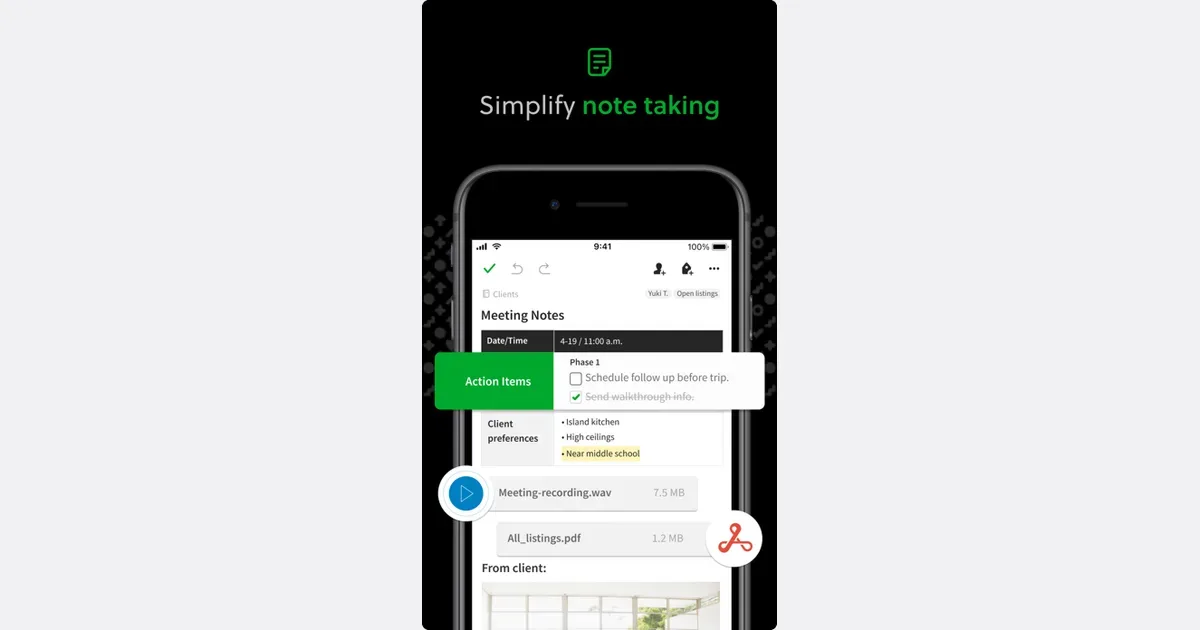
    Evernote search can match exact words or phrases in note content, titles, and tags. Use a note title with the words you expect to search for. See the official search guide for the search behavior.

    Evernote listing screenshot

    Use a name that answers two questions

    Before saving, ask: what is this about, and what detail will help me recognize it later? A simple pattern is “topic – detail – date,” such as “Rent – insurance renewal – 2026-11.” For a draft, use “Project – document type – status,” such as “Workshop – agenda – draft.” Keep the same order for similar files. You do not need to build a deep folder tree or rename everything you already own. Start with new files and the few items you need this week.

    Use ordinary words you are likely to search. “Car repair – estimate – 2026-11” is easier to spot than “scan_0042.” If a file contains sensitive details, leave those out of the name. A filename is visible in search results and file lists.

    Make one retrieval check

    After saving a file, close it or move to another screen. Then search for one word from its name and confirm that the file appears. This quick check tests the part that matters: can you find it again? If it does not appear, check the folder, spelling, or sync state before making another copy.

    Get monthly app discoveries and focus tips

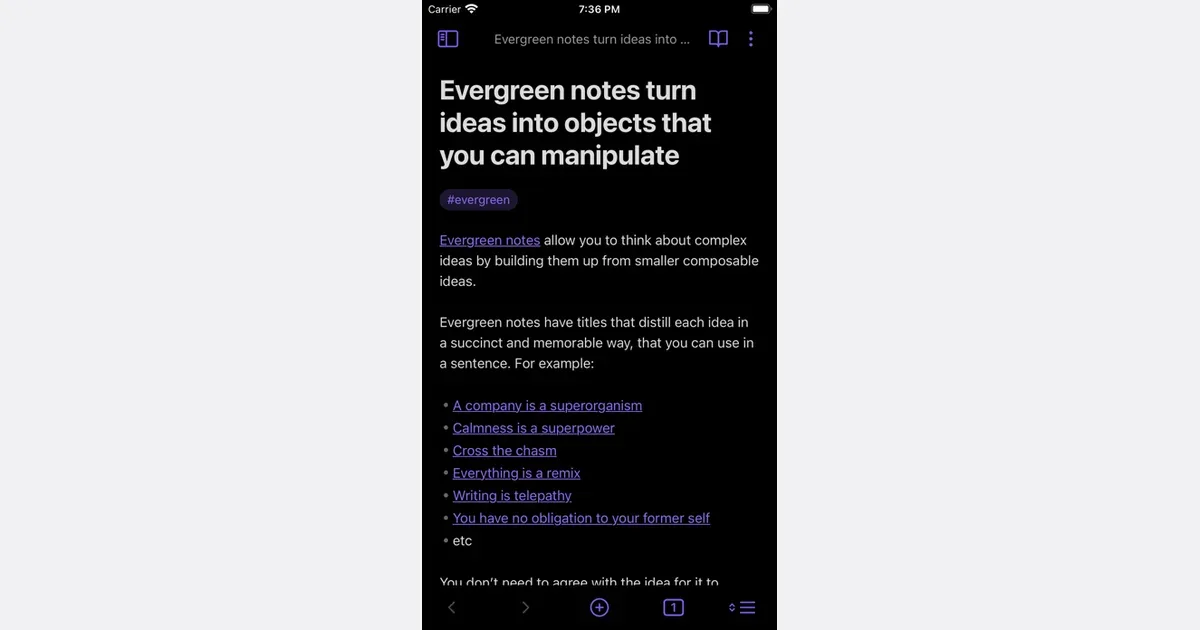
    Obsidian search has operators for finding file paths and filenames. The official search help explains them. Try the naming pattern on a note you need this week. Keep the exercise to a few notes so it does not become a large sorting job.
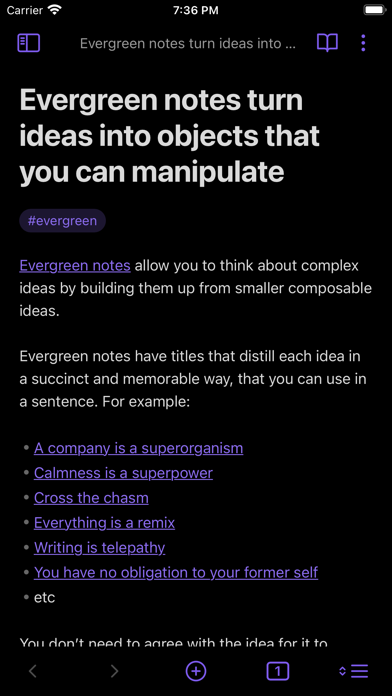
    Obsidian listing screenshot

    If the note has not been saved yet, the guide to capturing a quick note before the thought slips away covers that earlier step. Here, the goal is to find a note you already saved.

    CHADD defines working memory as holding information in memory while using it. Its day planner guidance discusses planning tools.

    Keep the routine small

    1. Choose one naming pattern for the kind of file you are saving.
    2. Include a topic plus one clue, such as document type or month.
    3. Save it in one known folder.
    4. Search for one part of the name and open the result.
    5. If the check fails, fix the location or name once; avoid making a second copy until you know where the first one went.

    A consistent name will not prevent every misplaced file. Sync delays, duplicate folders, and unclear source material can still get in the way. If a file is important, keep a backup in the storage system you already trust.

    Quick recap

    • Use names that include a topic and a recognizable detail.
    • Keep the order consistent for similar files.
    • Search once after saving to check that you can retrieve it.
    • Try the method with one file today, then reuse it only if it helps.
    Apps mentioned in this article

    Evernote logo

    Cloud-based notes with powerful search and organization

    Evernote is a note-taking and information-capture app for keeping written notes, saved web material and project context together. It is useful when the problem is remembering where something was stored: a receipt, an article, a meeting note or the instructions for a recurring task. Notebooks and tags provide organizational choices, while search helps retrieve material later. A practical workflow might begin with one notebook for an active project. Capture meeting decisions in a note, save relevant articles beside it and add a short explanation of why each item matters. The Web Clipper can save web pages, articles, PDFs or selected material, and it offers screenshot annotations. Giving a clipping a clear title and a useful tag makes it more helpful than simply collecting another unread page. Evernote's wider feature set brings tasks and calendar-related context into the same environment. Its search can look inside supported images and documents, which can be valuable for information that is awkward to file manually. Availability and limits vary with the current plan, so check the capabilities you need before relying on them for a large archive or team process. The trade-off is that easy capture can become an accumulation habit. Saving information is only one step; deciding what to keep and revisiting useful material is a separate routine. Start with a small number of notebooks and an occasional cleanup rather than a detailed filing scheme for every possible subject. Evernote may fit someone who wants a searchable personal reference collection, while a simpler notes app may be enough for short text and a dedicated project tool may be better for complex coordination.

    Helps with

    BrowserAppleMobile
    Free; from $99/year
    View
    Obsidian logo

    Local-first Markdown notes with extensive customization

    Obsidian is a note-taking and knowledge-base app built around local Markdown files. Notes live in a folder on your device, called a vault, rather than existing only inside a hosted workspace. You can begin with ordinary text notes and search, then connect related ideas through internal links as the collection grows. For a course or research project, a useful workflow is to write a note for each topic and link it to the sources or questions it relates to. A project note can become a starting page that points to reading notes, decisions and unfinished ideas. Backlinks and the graph view offer ways to explore those relationships, but you do not need a visually elaborate network to benefit from a few well-chosen connections. Obsidian supports customization through themes, plugins and other building blocks. That makes it possible to shape the environment around writing, journaling or a personal reference library. Optional Sync and Publish services address different needs: keeping notes available across devices and making selected material available on the web. Local files remain an important part of the product's approach, and your backup arrangements still matter. The main consideration is how much system design you want to take on. Plugins and naming conventions can improve a workflow, but experimenting with them can also displace the work you meant to do. Start with a small vault, descriptive titles and a project index you can actually revisit. Obsidian may suit people who value control over their notes and connections between ideas; it is less ready-made than a structured course notebook or a shared team task board.

    Helps with

    BrowserAppleWindows
    Free; USD 4/user/month for Sync (billed annually)
    View