

Guide#time estimates#overbooking#planning

    ADHD overbooking: use one task record to leave enough room in your day

    Compare an estimate with time spent on a recurring task before adding more work between fixed commitments.

    ADHD Product DirectoryNovember 15, 20263 min read
    A hand marks a paper calendar beside a laptop, phone and colored folders.

    You plan a short piece of work between two meetings. The work takes longer than the gap, and the next meeting starts before you finish. For your next plan, compare one estimate with one record of time spent. Use the result to decide what can fit before you add another task.

    This is a small planning exercise. It does not measure how hard you tried, and a single task cannot tell you how long every future task will take. You can use paper if an app adds work you do not need.

    1. Choose a task you repeat

    Pick something with a clear end, such as drafting a weekly status email. Write what the estimate includes. Does drafting include finding the figures, checking names and sending the email? An estimate for writing alone will not cover those other steps.

    Before you begin, write your estimate in minutes. Keep it separate from the record of what happened. You need both numbers to compare them later. If you track work for an employer, use the tools and privacy rules agreed for that workplace.

    2. Keep one record you can review

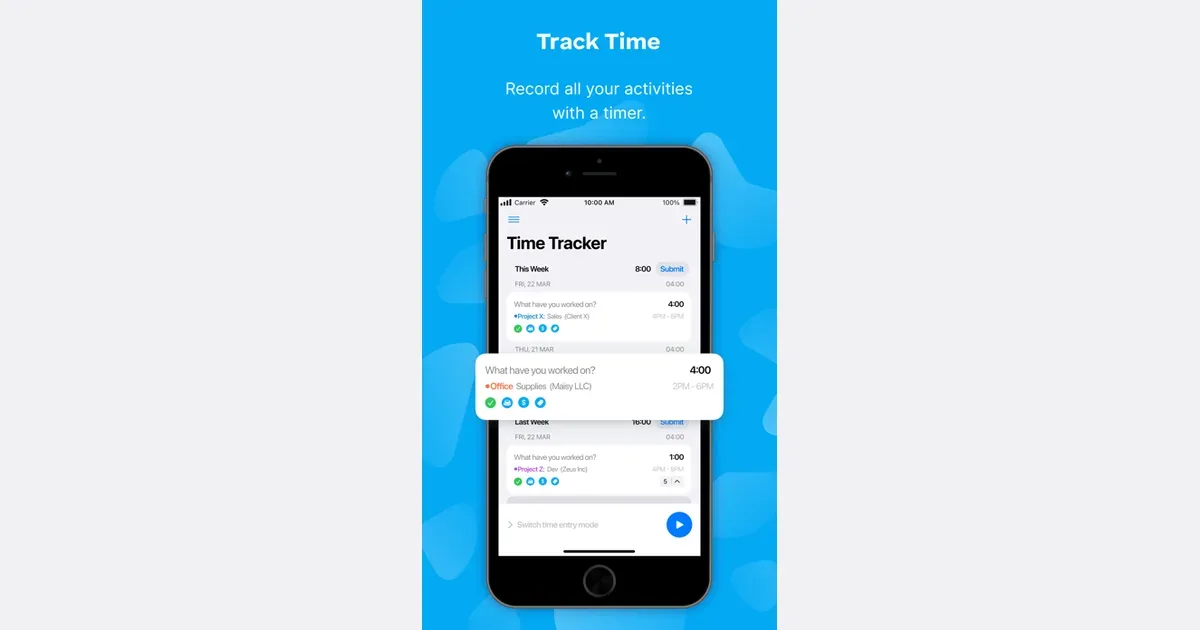
    Clockify can group recorded time entries by project or date in its Summary report. Its official report guide explains those groups. Use an entry description you will recognize later, such as “weekly status email, including checks.”

    Clockify listing screenshot showing its time tracking interface

    Keep the record narrow. You do not need to log your whole day to answer one question about a recurring task. Note interruptions separately so you can tell whether the number describes active work or the full time between start and finish. Choose the measure that fits your planning question.

    Toggl Track also has a Summary Report for reviewing total tracked time. Its official report guide explains that view. If you already keep records there, use those instead of adding a second tracker. Choose one tool for this exercise; keeping duplicate records would add a separate task.

    Get monthly app discoveries and focus tips
    Toggl Track listing screenshot

    3. Compare the estimate with what happened

    Suppose you allowed 20 minutes and the complete task took 35 minutes. These are example numbers, not a rule about how much extra time to allow. Ask which part was missing from your estimate. Perhaps you had to find a file, get a reply or check a calculation.

    For the next attempt, include the steps you left out. If the time changed because of an unusual delay, label it. Do not turn one difficult day into a fixed judgment about your pace. If collecting the record makes you tense or leads to constant checking, stop the exercise and plan with a rough range instead.

    4. Check the gap before accepting more work

    Put fixed commitments into your planner first, including travel and preparation you already know you need. Then compare the actual open gap with the task you want to add. CHADD recommends using a day planner as a calendar for everything. Its day planner guidance provides broader advice about using one place for scheduled events.

    If the gap cannot hold the task, decide what can move before you promise to finish it there. You might move the task, reduce its scope or ask which commitment takes priority. A more detailed app cannot create time that is already committed.

    If the hard part is noticing how much of the day has passed, the guide to using visible time cues to follow a plan covers that separate step. Here, the aim is to improve the estimate you put into the plan.

    Try this on your next recurring task

    • Name what the task includes before estimating it.
    • Keep one record of time spent, with a note about major interruptions.
    • Compare the record with the estimate and identify a missing step.
    • Check the next open gap before adding the task to it.

    Choose one recurring task today. Write its estimated duration beside its name, then compare that estimate with what happened after you finish.
    Apps mentioned in this article

    Clockify logo

    Free time tracker and timesheet for teams and solo workers

    Clockify is a time-tracking and timesheet app for recording work across projects. You can use it to understand how long activities take, keep a record of client work or review how a team's time is distributed. Its wider feature set extends into reporting, rates, planning and administration, with availability depending on the plan. A practical first setup uses a small number of recognizable projects and clear time-entry descriptions. Start a timer when beginning an activity, or add the time afterward when that is more appropriate. A description such as revising the proposal is more useful in a later review than a generic label such as work. Consistent categories make it easier to compare similar tasks over time. Reports can summarize the recorded entries, while billable-rate and project-budget tools support work that needs a financial record. Team-oriented capabilities include reviewing time and understanding capacity. Clockify also describes optional activity and location features, so distinguish a simple personal timer from a more extensive organizational tracking setup. Review what is enabled and visible before using it with colleagues. Clockify may suit people who forget how long a project actually took or need a more reliable record than memory at the end of the week. Tracking still requires interpretation and maintenance. A timer left running through a break can distort the result, and detailed categories are only worthwhile if someone uses the information. Begin with one question you want to answer, such as whether a recurring task needs more time, and choose the smallest amount of tracking that gives you a useful answer.

    Helps with

    AppleWindowsMobile
    Free; from USD 4.99/seat/month
    View
    Toggl Track logo

    Simple time tracker with one-click start for every task

    Toggl Track is a time-tracking tool for turning work sessions into a record you can review. Its current platform connects time entries with project planning, capacity and financial reporting, while the core timer remains useful for individual work. You can start a timer, enter time afterward or organize entries through a timesheet-style workflow. For a freelancer or personal project, a practical starting point is a few project categories and descriptive entries. Track a drafting session, a call and the follow-up separately if those distinctions will help you estimate similar work later. The purpose is to learn from the record, not to create a separate administrative task for every tiny interruption. The product includes reports, integrations and options for relating calendar events to time entries. Supported desktop activity tracking can provide a private timeline from which you decide what becomes a logged entry. Team and paid features extend into rates, budgets, approvals and capacity planning, so check the current plan and device support for the workflow you need. Automatic data collection and an approved billable record are different things. Toggl may fit people who want to compare estimated effort with actual time or make client reporting less dependent on memory. Its usefulness depends on accurate entries and a sensible review habit. Check timers that run unexpectedly long, use consistent project names and avoid interpreting every minute away from a task as wasted. Start with a small tracking routine that you can maintain, then add reporting detail when it helps make a concrete planning decision.

    Helps with

    AppleWindowsMobile
    Free; from $12/user/month
    View